Google Form QR code: make one that works from a poster
How to make a Google Form QR code that opens without sign-in, scans from a small print, tells you which poster each response came from and does not dead-end after the form closes.
A Google Form QR code looks like a two-minute job: copy the form link, paste it into a QR code generator, print. Most guides stop there, and that is exactly where printed forms go wrong. A form on a poster, a flyer or a table card has to meet three conditions that a form sent by email does not. It has to open for people who are not signed in to a Google Account on their phone's browser. The code has to scan from print, and how dense it is depends on which of the form's links you encode. And someone has to think about the day collection ends, because posters tend to stay up longer than surveys run. Below: the settings that quietly force a sign-in, why the form must be published before you make the code, which link to put in the code (with our measurement of code density for four link forms), how to tell which poster a response came from, and what people see when they scan after the form has closed. Every Google Forms detail is quoted from Google's own help pages.
Making the form: the short version
Create the form at forms.google.com, from Google Sheets or from Google Drive — and where you create it decides where the responses land. Google's help lists three routes (Google Docs Editors Help, create a form, read 21 Oct 2026): go to forms.google.com and click "Blank form"; or, in a spreadsheet, click Tools → Create a new form, in which case "the responses will be saved in a new sheet"; or, in Drive, click New → Google Forms. Either way, the form itself is saved in Google Drive.
For a form people fill in on a phone in front of a poster, keep it short and mostly closed questions: multiple choice, checkboxes and linear scales are tapped with a thumb, while every short-answer or paragraph field means typing on a small keyboard (question types). For a sign-up form, start with the fields without which the entry is useless — name, contact, date — and make the rest optional. A sign-up form is not a ticket, though — the difference is explained in our guide to QR code tickets. The same tool also builds graded quizzes, but this article stays with surveys and sign-ups, the forms that end up on posters.
Settings that make responders sign in
A Google Form can be filled in without a Google Account — until you switch on a setting that requires one, and Google's help names three of them. In any crowd scanning a poster, some people are not signed in on their phone's browser: they use a different account, a browser without sign-in, or have no Google Account at all. Each of these settings either locks them out or makes them sign in first.
- "Limit to 1 response." Google's help: "To access and fill out the form, users must sign in to their Google Account. Their usernames won't be recorded unless you turn on the 'Responses' setting to collect email addresses" (share a form, read 21 Oct 2026). It protects a vote from duplicates, at the price of a sign-in for everyone who scans.
- A File upload question. "To answer this question, responders need to sign in to a Google Account," and "uploaded files are stored in a new folder on Google Drive" of the form owner (question types). The question type is also unavailable when the form is stored in a shared drive or your administrator has turned on Data Loss Prevention.
- Access restricted to a domain or group. "Before owners publish a form, they can restrict the access to a domain, trusted audience, or group of users" (share a form). Useful inside a school or company; on a poster in a public place it shuts out everyone outside the domain.
One more setting needs no sign-in but matters before you print: "View results summary." With it on, everyone who submits gets a link to the results, and Google states that response summaries "show full text responses or charts for each question and are visible to anyone who can respond to the form." Harmless for a vote on the best workshop date; a problem for a sign-up form with names and phone numbers, because anyone who scans the poster can then read everyone else's details. If you collect personal data, leave it off and check your organisation's data protection duties — under the GDPR that is a question for whoever handles data protection, not for a QR code generator.
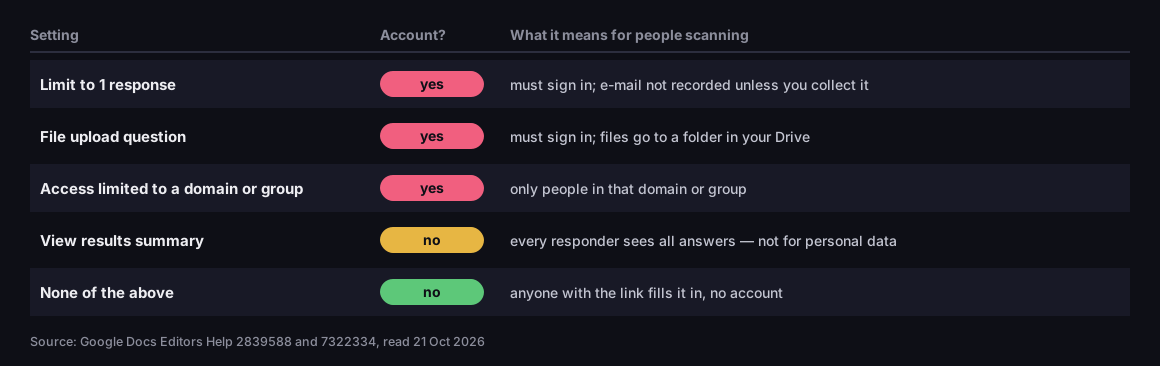
Which settings make responders sign in
Google Forms setting → needs a Google Account? → effect on people scanning
Source: Google Docs Editors Help, answers 2839588 and 7322334, read 21 Oct 2026
Figure description
Table. Limit to 1 response: needs an account; responders must sign in; e-mail is not recorded unless you collect it. File upload question: needs an account; files go to a folder in the owner's Drive. Access limited to a domain or group: needs an account; only people in that domain or group. View results summary: no account needed, but every responder sees all answers, so not for personal data. None of the above: no account needed; anyone with the link can fill it in.
A customer satisfaction survey in Forms is a different thing from a Google review: only you see the answers, while a review on a Business Profile is public and governed by Google's rules on asking for reviews — see Google review link.
Publish before you make the code
An unpublished form cannot be opened from its link, so make the QR code only after publishing — never from the preview. Google's help says it twice: "Before responders can access your form, you need to publish it," and "If the form is unpublished, responders with the link can't access it" (share a form, read 21 Oct 2026).
To publish, click "Publish" at the top right; under "General access" you can give access to anyone with the link; then confirm. Once published, the same corner shows "Published."
You can copy the responder link from three places, all ending in "Copy responder link": "Preview," "Published" or "Share." The trap is the first one. Google's help ties "Published" and "Shorten URL" to a form that is already published, but attaches no such condition to "Preview" — so the preview gives you a link to a form nobody can open yet. Make a code from it, send the file to the printer, and the whole run goes up with a code to a form that nobody can open until you press "Publish."
Before printing anything, run a one-minute test: open the link in a private browser window on your phone, with no Google Account signed in, and submit a test response. If you get a sign-in prompt instead of the form, go back to the settings above. Delete the test response afterwards in the "Responses" tab.
Google Form QR code: which link to encode
A Google Form QR code can carry the long form link, Google's short forms.gle link or your own short link — and that choice decides how dense the code is, whether you can change the destination after printing and whether you can count scans. The long link looks like https://docs.google.com/forms/d/e/…/viewform with the form's id in the middle. Once the form is published, Google's help offers a second option: "Click the box next to 'Shorten URL.' Click Copy," which gives you a forms.gle address. The third option is a short link from a URL shortener such as ours, pointing at the form.
We measured how dense the QR code gets for each. Form links have a fixed length for the service, so we used example addresses of the typical length (a 56-character form id) rather than a real form. The qrcode library — the same one behind our generator — computed the codes at two error correction levels: M (a code without a logo) and H (with a logo; our QR code generator uses H for every code that carries the DVN Links logo).
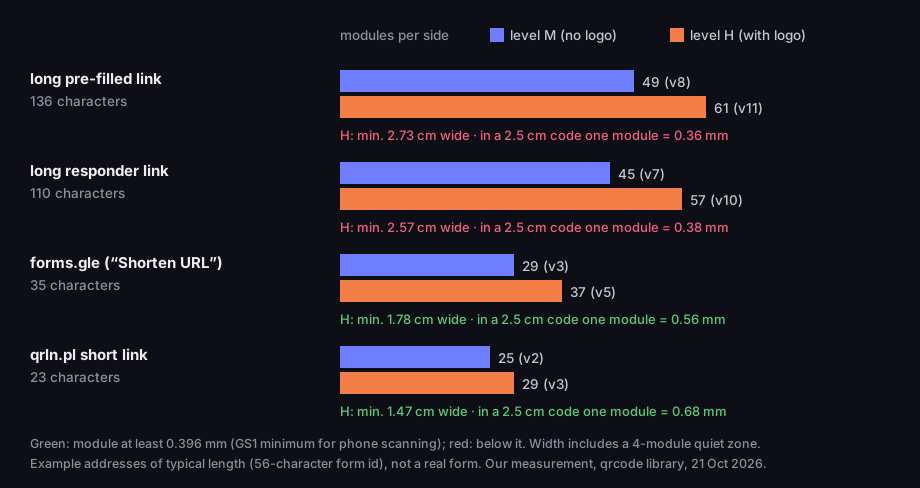
Which link you encode decides how dense the code is
modules per side for four links to the same form; levels M and H
Source: our measurement, 21 Oct 2026 — qrcode library, 4-module quiet zone, minimum module 0.396 mm (GS1 General Specifications, Table 5-46); example addresses
Figure description
Horizontal bars. Long pre-filled link, 136 characters: level M version 8, 49 modules; level H version 11, 61 modules, smallest print 2.73 cm, module 0.36 mm in a 2.5 cm code. Long responder link, 110 characters: M version 7, 45 modules; H version 10, 57 modules, minimum 2.57 cm, module 0.38 mm in a 2.5 cm code. forms.gle, 35 characters: M version 3, 29 modules; H version 5, 37 modules, minimum 1.78 cm, module 0.56 mm. qrln.pl short link, 23 characters: M version 2, 25 modules; H version 3, 29 modules, minimum 1.47 cm, module 0.68 mm. Threshold 0.396 mm per module per GS1.
How to read it. A QR code is made of modules, the small black and white squares. More characters in the link mean more modules, and at the same printed width each module gets smaller. As the smallest module for phone scanning we use 0.396 mm, the figure GS1 gives for QR codes on packaging read by mobile devices (GS1 General Specifications 26.0, Table 5-46). On top of that comes the blank margin of four modules on every side that DENSO WAVE, the inventor of the QR code, requires (qrcode.com). In a code printed 2.5 cm wide, the long link with a logo gives a 0.38 mm module — below the threshold — while the short link gives 0.68 mm, almost twice as much. On an A3 poster that hardly matters. On an A6 flyer, the corner of an invitation or a sticker, it decides whether an older phone reads the code on the first try. Our generator warns about a dense code only when it needs more than 3 cm; the long form link stays within 3 cm in our measurement, so you will not see the warning even though a 2.5 cm print falls below 0.396 mm. Size and distance are covered in detail in can't scan a QR code.
Next to the code, say what happens after the scan and how long it takes: "Scan to sign up for the workshop — 5 questions, 2 minutes." A bare square tells a passer-by only that it leads somewhere; a sentence with a concrete task and a time gives them a reason to take out their phone. If the form has a deadline, print it too — it saves latecomers a scan that ends in a closed-form message.
Density is one difference. The others:
|
Link in the code |
Density |
Change destination after printing? |
Count scans? |
|---|---|---|---|
|
Long |
highest |
no |
no |
|
|
low |
no |
no |
|
DVN Links short link |
lowest |
yes, in the dashboard |
yes |
About forms.gle, one thing is worth knowing: it is a Google domain whose future you do not control. Google retired its public goo.gl shortener; in an update dated 1 August 2025 it said actively used goo.gl links will be preserved and that goo.gl links "generated via Google apps (such as Maps sharing) will continue to function" (Google for Developers). The post says nothing about forms.gle, and we found no statement from Google either way.
To make the code itself, open the QR code generator, pick the "Website" type, paste the link and download the PNG. Without an account, and on the Free plan, the code carries the DVN Links logo and a dvnlinks.pl caption. It is a static code: the link lives in the code, so it cannot be changed after printing. The difference between static codes and codes whose destination you can change is explained in how to make a QR code. For a real-life example — wedding RSVPs collected with a form — see wedding QR code.
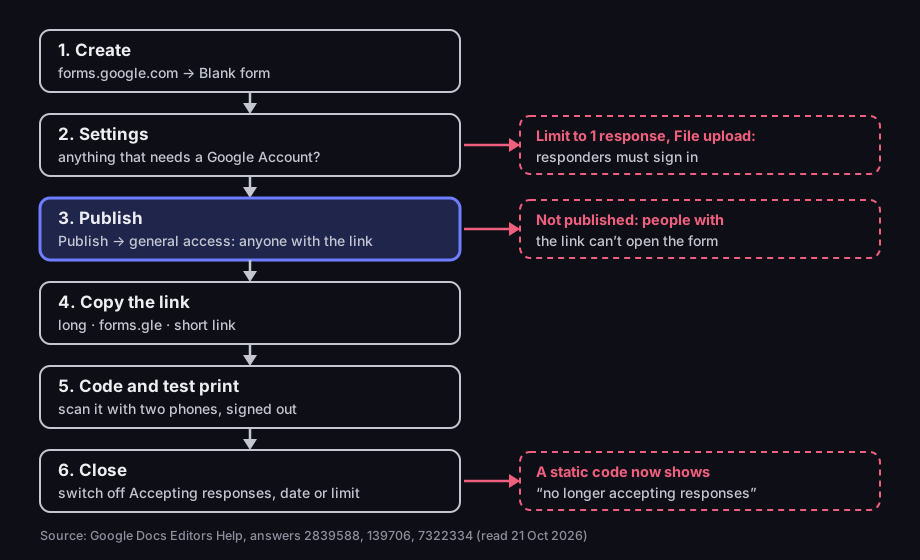
From a Google Form to a printed QR code
six steps and three places where the code stops working
Source: Google Docs Editors Help, answers 2839588, 139706, 7322334 (read 21 Oct 2026)
Figure description
Six steps: 1 create the form at forms.google.com; 2 settings — does anything need a Google Account; 3 publish with access for anyone with the link; 4 copy the link: long, forms.gle or short; 5 code and test print, scanned with two signed-out phones; 6 close: switch off Accepting responses, a date or a limit. Traps: at step 2, Limit to 1 response and File upload make responders sign in; at step 3, an unpublished form cannot be opened from the link; at step 6, a static code keeps leading to the message that the form no longer accepts responses.
Which poster did the response come from?
Google Forms does not tell you where a response came from — if you need to know, the information has to travel inside the response itself or be counted separately as scans. The help pages on viewing responses (view and manage responses) describe no source report and no place for campaign parameters. UTM parameters that work in Google Analytics on your website have nowhere to land here: the form is not your site with your analytics. What UTM tags do and where they stop is covered in UTM parameters.
Two methods work, and they work best together.
Method 1: a pre-filled link. Google Forms can produce a link with some answers already filled in: under More, select "Pre-fill form," fill in the fields, click "Get link" and "copy and send the link at the top" (share a form). Add a multiple-choice question at the end, "Where did you see this form?", with options such as "poster A," "poster B," "flyer," "stand." Generate a separate pre-filled link for each location and make a separate code from each. The answer lands in the spreadsheet like any other, so the source sits in a column next to the rest of the data. The pre-filled value is visible in the link itself, as a parameter with the field's number after the question mark — how such parameters work is covered in our guide to query strings.
Two caveats. The responder sees the pre-filled field, and Google's help does not describe a way to hide it, so someone can change the answer — treat the result as a good estimate, not accounting. And the pre-filled link is the longest of the ones we measured — 136 characters in our example, version 11 at level H — so its code is the densest.
Method 2: a separate short link for each location. In DVN Links, create one short link for poster A and another for poster B, both pointing at the form. Each link's stats show the scans: when, from which country, on which device. Bots such as messaging-app link previews are recorded but left out of the stats. A short link counts scans, not responses, though. Someone can scan, look at the form and submit nothing. The gap between scans and responses is useful in its own right: it tells you how many people the form put off.
Both together: point poster A's short link at the link pre-filled with "poster A." The code stays small, the stats show scans, and the spreadsheet shows responses labelled by location.
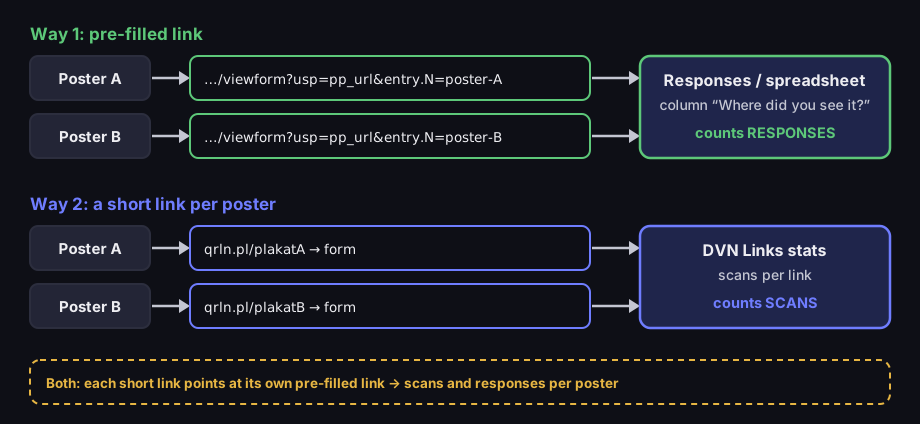
Two ways to tell which poster a response came from
a pre-filled link counts responses, a separate short link counts scans
Source: Google Docs Editors Help, answer 2839588 (read 21 Oct 2026); DVN Links, 21 Oct 2026
Figure description
Method 1, pre-filled link: poster A leads to the form link with poster-A already filled in, poster B with poster-B; the answer lands in the responses and the spreadsheet as a column Where did you see it, so you count responses. Method 2, a short link per poster: qrln.pl/plakatA and qrln.pl/plakatB both lead to the form; DVN Links stats count scans per link. Both: each poster's short link points at its own pre-filled link, giving scans and responses per poster.
When collection ends: closing, limits and what latecomers see
A closed form stays at the same address and shows a message — so a printed static code keeps leading to that message for as long as the poster is up. Google's help describes three ways to close (view and manage responses, read 21 Oct 2026). In a published form, click "Published" and turn off "Accepting responses." Or click "Set close date or response limit" and pick a date and time, or "After a number of responses." Anyone who reaches a closed form sees "The form is no longer accepting response" or your custom message.
The response limit is not a hard cap. Google says so plainly: "If multiple people respond at the exact same time, the form accepts responses regardless of the response limit." For a sign-up with 20 places promoted at a busy stand, where several people fill the form at once, expect 21 or 22 entries and decide in advance what you do then — a waiting list is easier than explaining a refusal.
Write your own closing message. Instead of the bare default, say when and where the results will appear, or when the next round opens. With a static code, that message is the only thing you can still change after closing.
A short link gives you more. Once the form closes, change the link's destination in the dashboard — to a results page, a thank-you note or next year's form. The printed code stays the same, because the short link redirects with a 302, the status code for a temporary destination. More on how that works in how to shorten a link.
One caveat we have to state plainly. On the Free plan the code carries the DVN logo and the account has 1,000 clicks a month; clicks over the limit are hidden in statistics. For a two-week survey that is enough; for a poster that stays up for a term in a busy spot, it may not be. On paid plans from Starter the code has no logo and you set the expiry date yourself — compare plans on the pricing page. Link monitoring on the Pro plan will not stand in for your attention here either: it checks whether the destination answers, by the server's status code, and does not read the page. It cannot tell a closed-form message from a working form.
Where to find the responses
Responses live in the "Responses" tab of the form editor — as a summary, by question, one by one, or in a spreadsheet. Google's help (view and manage responses) describes the views: the "Summary" tab with the list of people who responded and charts for each question (it appears only once there is at least one response); individual responses you step through with "Previous" and "Next"; "Link to Sheets" for every response in a spreadsheet — the help warns that the form's collaborators may also get access to the linked spreadsheet; "Download responses (.csv)"; and, under More, "Get email notifications for new responses." The poster source from the previous section shows up in the summary as a chart for "Where did you see this form?" and in the spreadsheet as a column you can sort or filter.
Frequently asked questions
Publish the form, copy the link with "Copy responder link" (after publishing, not from the preview), paste it into the QR code generator as the "Website" type and download the PNG. Before printing, scan a test print with a phone that is not signed in to a Google Account.
No — unless you turn on "Limit to 1 response," add a File upload question or restrict access to a domain or group. Each of those requires a sign-in, according to Google's help.
After publishing, tick "Shorten URL" when copying the link to get a forms.gle address. If you want to change the destination after printing or count scans, use a short link from a URL shortener that points at the form.
A static code works as long as the link does; after the form closes, it leads to the "no longer accepting responses" message. A code built on a short link can be pointed elsewhere after closing; on the Free plan the code carries the DVN logo and the account has 1,000 clicks a month. Will the poster outlast the survey? Create an account and make the code from a short link — when the form closes, point it at the results.