Google review link: how to get it and make a QR code
Google gives you the Google review link and a ready QR code in your Business Profile. Where to click, how large to print the code and what Google's policies forbid when you ask customers for a review.
Getting a Google review link needs no outside generator: Google gives it to you free in Business Profile, in the same window as a ready-made QR code to print (Business Profile Help). Google also recommends using it: its tips for getting more reviews say you can ask customers to visit a Google link or scan a QR code (Google, review tips). Getting the link takes two minutes; how you ask for the review needs more care. Google's rules are stricter than most guides suggest: they forbid incentives for any review, not only a positive one, selectively asking happy customers, and pressuring a customer on your premises. Break them and Google can remove the reviews, block new ones for a set period and show customers a warning on your profile.
Google review link: where to find it in Business Profile
The review link and the QR code sit in one window of Business Profile, but you can only generate the code in a computer browser: "Currently, reviews QR codes can only be generated on a computer browser, not on mobile devices" (Business Profile Help). If you are looking in the phone app, switch to a computer.
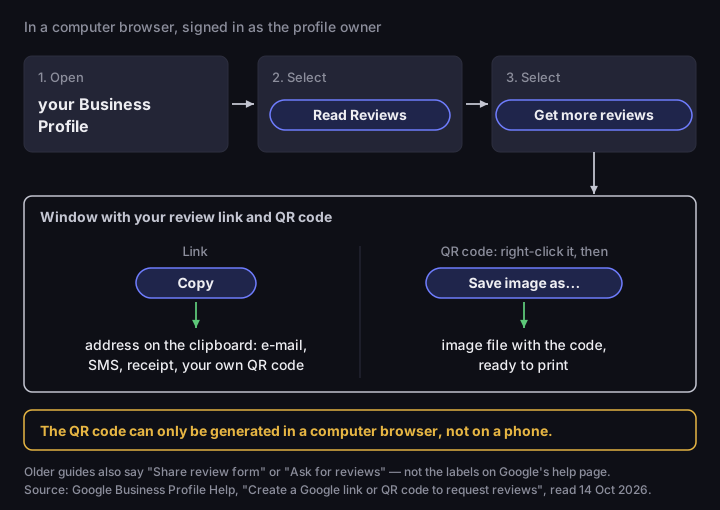
The route in Google's help:
- Open your Business Profile in a computer browser, signed in to the Google Account that manages it.
- Select Read Reviews.
- Select Get more reviews. A window opens with the link and the QR code.
- Copy the link with Copy. Download the code by right-clicking it and choosing Save image as...
Older guides use the names "Share review form" or "Ask for reviews", which Google's current help does not; if your panel looks different, follow the same sequence: reviews, a request for more reviews, copy.
Where to find your Google review link
schematic of the steps in Business Profile, not a screenshot
Source: Google Business Profile Help, “Create a Google link or QR code to request reviews”, read 14 Oct 2026
Figure description
Schematic of the steps in Google Business Profile, not a screenshot. In a computer browser: 1. open your Business Profile, 2. select Read Reviews, 3. select Get more reviews. A window shows the review link and a QR code. To copy the link, select Copy. To download the QR code, right-click it and select Save image as... The QR code can only be generated in a computer browser, not on mobile devices. Older guides use the names Share review form and Ask for reviews. Labels from Google Business Profile Help, read 14 October 2026.
Copy the link with the button instead of building it yourself. Google's help does not say what a review link looks like. Guides quote two forms: a short one starting with g.page/r/, and a longer one with a Place ID in a search.google.com/local/writereview address. Both come from companies that sell generators, not from Google's documentation. Paste the link from the Copy button, the only form Google itself gives you.
Before you send the link out, open it on a phone. One limit is outside your control: a customer must be signed in to a Google Account to leave a review, though they can set one up with a non-Gmail address (Google, review tips). Some people who scan the code will stop at sign-in; that is not a fault in the link.
Google review QR code: from your profile or from a generator
The QR code from Business Profile is good enough for print; Google itself suggests you print it and display it in your store (Business Profile Help). An outside generator makes sense in two cases: you have the link but no computer access to the profile because someone else manages it, or you want to encode a different address, such as the short link covered in the next section.
In the DVN Links QR generator you pick the Website type and paste the copied link. The generator stores that address unchanged, so the code goes straight to Google with no server of ours in between. It is a static code: you cannot change the target after printing, but nothing in it can expire either. Without an account you get a 1000 px PNG with the DVN Links logo in the middle and the caption dvnlinks.pl underneath; because of the logo, the code uses the highest error correction level, H. The generator shows a minimum print width under the preview only for content longer than 300 characters, so with a Google link you will not see one. Static codes and short-link codes are compared in our text on types of QR codes.
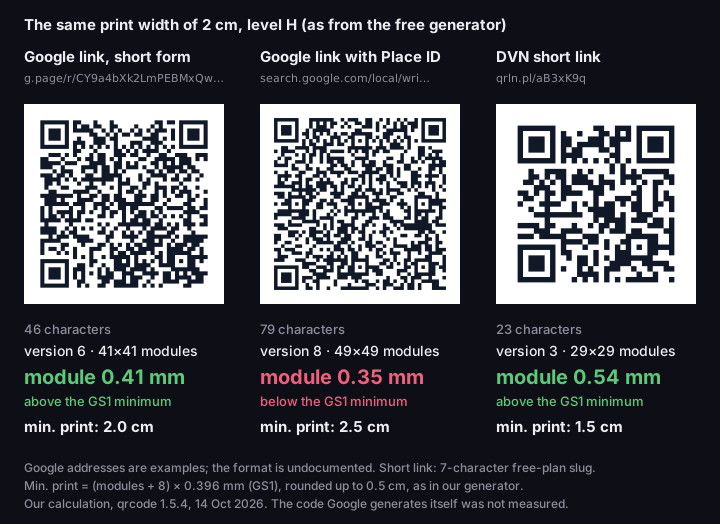
How dense the code is depends on the form of the link. We measured three example addresses at level H with qrcode 1.5.4, the library our generator uses. The short form of a link (46 characters) gives 41 × 41 modules, the single squares; a link with a Place ID (79 characters), 49 × 49; a DVN short link (23 characters), 29 × 29. Printed 2 cm wide with the quiet zone, a module is 0.41 mm, 0.35 mm and 0.54 mm respectively. The GS1 standard sets a minimum of 0.396 mm (GS1 General Specifications 26.0), so the Place ID code falls below it at that size. By the formula our generator uses, the smallest safe print is 2.0 cm for the short form, 2.5 cm for the Place ID form and 1.5 cm for the short link. This is our calculation of 14 October 2026 for example addresses, not a measurement of Google's own code, whose content and error correction level we do not know.
Three review codes at the same size
real QR codes, 2 cm print with quiet zone, error correction level H
Source: our calculation, qrcode library 1.5.4, 14 Oct 2026; module minimum from GS1 General Specifications 26.0; the Google addresses are examples
Figure description
Three real QR codes printed at the same width of 2 cm, quiet zone included, at error correction level H, which the free generator uses because of the logo. Google link, short form (46 characters): version 6, 41×41 modules, module 0.41 mm at 2 cm, above the GS1 minimum, minimum print 2.0 cm; Google link with Place ID (79 characters): version 8, 49×49 modules, module 0.35 mm at 2 cm, below the GS1 minimum, minimum print 2.5 cm; DVN short link (23 characters): version 3, 29×29 modules, module 0.54 mm at 2 cm, above the GS1 minimum, minimum print 1.5 cm. The GS1 minimum module is 0.396 mm. The Google addresses are examples, because Google does not document the format; the code Google generates itself was not measured. Our calculation, qrcode 1.5.4.
A short link gives the smallest code, but half a centimetre to a centimetre of print is too little to base a decision on. The short link in the figure comes from the free plan, where links expire after 30 days, and a smaller code is no reason to print a link that will stop working. How to work out the print size for any content, and what else breaks scanning, is covered in our text Minimum QR code size.
Short link on the code: counting scans and the 30-day trap
A short link instead of the Google link pays off only if you want to count scans from different places or change the target without reprinting, and only on a paid plan. In DVN Links a short link's code holds the short link's address, not Google's. You can change the target in the dashboard on any plan while the printed code stays the same, which helps if the business moves to collecting reviews on a different profile.
The second benefit is a separate link for each place: the counter, the receipt, the thank-you e-mail. We record every visit to a short link as a click, with country, device, browser and operating system, then redirect to Google, so the numbers on each link show which place works. Two things stay hidden. We cannot tell a scan from a click, because to the server both are the same visit. And we do not know whether a review followed: Google does not tell us who left one, and some customers stop at the sign-in. You count scans, not reviews.
Do not use UTM parameters for this. In DVN Links a short link's UTM fields are appended to the target address, which here is Google, not your own site with analytics, so they reach none of your reports. We also have not checked whether a Google link with added parameters still opens the review window. Tell places apart with separate short links. What UTM is for is covered in our text on UTM parameters.
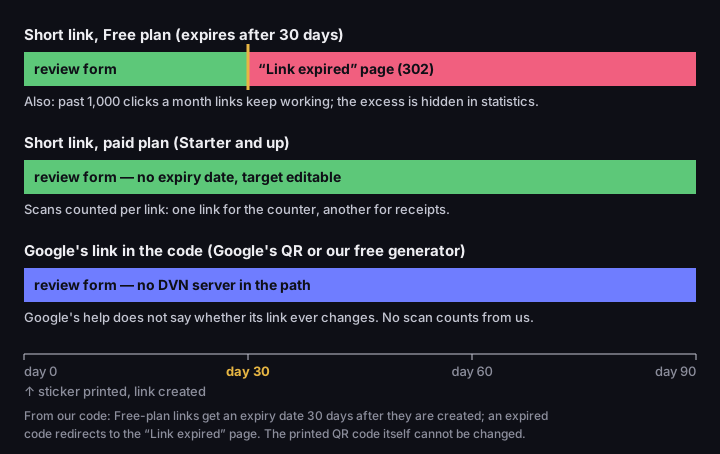
The trap is on the free plan. A short link created there expires 30 days after creation, and you cannot turn that off. After that the code no longer leads to Google: it redirects to our page saying the link has expired. A customer who scans the sticker in the second month sees that page instead of the review window. The free plan also allows 1,000 clicks a month for the whole account; once they are used up, links keep working and clicks over the limit are hidden in statistics until you upgrade. Statistics cover 7 days on the free plan and 30 on Starter. All these values come from our code and plan configuration as of 14 October 2026.
What a printed review code does after 30 days
90 days from printing, three kinds of code
Source: DVN Links code (plan configuration and short-link redirect), 14 Oct 2026
Figure description
Timeline over 90 days from printing a review QR code. Short link on the Free plan: leads to the Google review form until day 30, then to the “Link expired” page (HTTP 302); past 1000 clicks a month on the whole account, links keep working and clicks over the limit are hidden in statistics. Short link on a paid plan (Starter and up): no expiry date, target editable, scans counted per link. Google's own link encoded directly, from Google's QR code or our free generator: leads to the review form with no DVN server in the path; Google's help does not say whether the link can change, and we count no scans. From DVN Links code, 14 October 2026.
On the free plan, print the code from your Business Profile, or one from our generator that holds only the Google link. Both go straight to Google and have no expiry date on our side. Put a short link on a sticker only on a paid plan, where links do not expire unless you set a date. The plans are described on the pricing page.
Asking for a Google review: what is allowed and what Google forbids
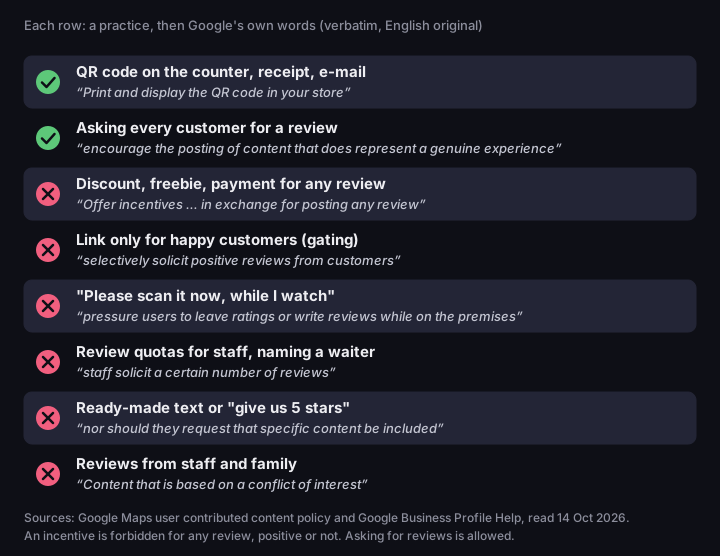
Google lets you ask any customer for a review, but forbids anything that influences who writes it, when, and what it says. One sentence from the Maps content policy sets the frame: merchants may "solicit or encourage the posting of content that does represent a genuine experience, without offering incentives to do so or attempting to influence the rating or the contents of the review" (Google Maps user contributed content policy). A code on the counter, on the receipt or in an e-mail clearly fits that, since Google itself recommends "Print and display the QR code in your store" (Business Profile Help).
No incentive for any review. The help page with the QR code instructions says that offering incentives, such as free or discounted goods or services, in exchange for reviews is fake engagement and "strictly prohibited", including a reward for changing a review or removing a negative one (Business Profile Help). The Maps policy lists "payment, discounts, free goods and/or services" in exchange for "posting any review" (Google Maps user contributed content policy). Some guides narrow this ban to positive reviews; that is wrong. A discount "for a review, whatever it says" or a freebie on the next visit is still a benefit in exchange for a review. Google does not name loyalty points or a prize draw among reviewers, but its list begins with "such as", so in our judgement they are the same case.
No selective asking. A business must not "discourage or prohibit negative reviews, or selectively solicit positive reviews from customers" (Google Maps user contributed content policy). The Polish translation of the policy drops "selectively" and, read literally, would forbid any request for a good review; we rely on the English wording. What is forbidden is selection: a link only for customers who look satisfied, or a gate survey in which "yes, it was great" leads to Google and "no" to a contact form. Google gives its own reason: "A mix of positive and negative feedback often feels more trustworthy" (Google, review tips).
No pressure on the premises. A business "should not require or pressure users to leave ratings or write reviews while on the premises" (Google Maps user contributed content policy). A code on a table is not pressure; "please scan it now, while I watch" is. Handing a customer a tablet with the review window open at the till is, in our judgement, the same case, though Google does not name it.
No quotas for staff and no ready-made text. The same passage forbids asking staff to collect a certain number of reviews, or reviews with specific content, including content that names a staff member, and asking a customer to include particular words. Ready-made texts to copy and "give us 5 stars" steer the content and the rating, so they fall outside a permitted request.
No reviews from your own people. The policy rules out content based on a conflict of interest: from current and former employees, contractors, competitors and family (Google Maps user contributed content policy), and content posted from multiple accounts by one person. Do not send the link to your team and relatives "to get started".
Asking for reviews: allowed and forbidden
8 practices, with Google's own words from the English policy under each
Source: Google Maps user contributed content policy and Business Profile Help (English versions), read 14 Oct 2026
Figure description
Table of 8 practices with Google's own words. Allowed: QR code on the counter, receipt, e-mail ("Print and display the QR code in your store"); Asking every customer for a review ("encourage the posting of content that does represent a genuine experience"). Forbidden: Discount, freebie, payment for any review ("Offer incentives … in exchange for posting any review"); Link only for happy customers (gating) ("selectively solicit positive reviews from customers"); "Please scan it now, while I watch" ("pressure users to leave ratings or write reviews while on the premises"); Review quotas for staff, naming a waiter ("staff solicit a certain number of reviews"); Ready-made text or "give us 5 stars" ("nor should they request that specific content be included"); Reviews from staff and family ("Content that is based on a conflict of interest"). Sources: Google Maps user contributed content policy and Business Profile Help, read 14 October 2026.
What happens to your profile after fake or incentivised reviews
For incentivised or fake reviews Google does not stop at removing them: it can restrict the whole profile, in some ways visible to customers. The Maps policy calls reviews incentivised by the business rating manipulation and says they will be removed, and puts unusual volumes or patterns of reviews that suggest an effort to manipulate a rating in the same category (Google Maps user contributed content policy). Google does not say which pattern counts as unusual. In our judgement a "let's collect 50 reviews this weekend" drive might look exactly like that, even if every review is genuine.
Besides removing reviews, Google can restrict a Business Profile. The restrictions page gives examples and says the list is not exhaustive: the profile cannot receive new reviews or ratings for a set period of time, its existing reviews are unpublished for a set period of time, and it displays a warning to let consumers know that fake reviews were removed (Google, Business Profile restrictions). Google does not say how long a "set period of time" is, nor in what order these apply; it is not a ladder of penalties. The owner gets an e-mail before a restriction is applied and can appeal.
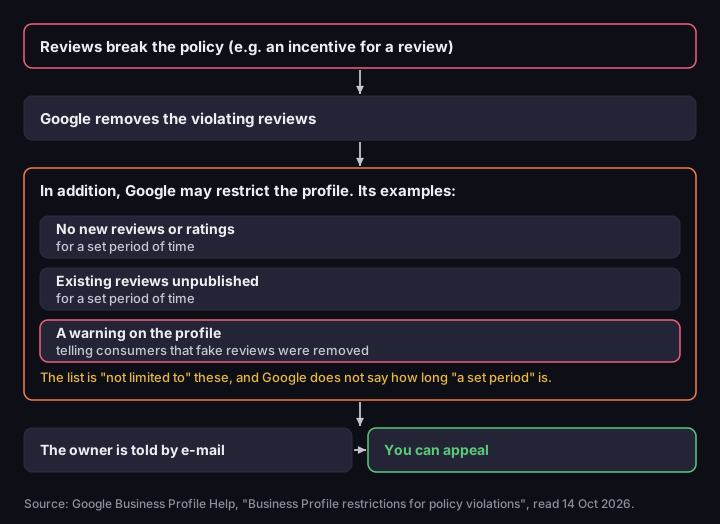
What happens to a profile after fake reviews
according to Google's help; examples of restrictions, not a closed list or an order
Source: Google Business Profile Help, “Business Profile restrictions for policy violations”, read 14 Oct 2026
Figure description
Diagram based on Google's help page on Business Profile restrictions. When reviews break the policy, for example after an incentive, Google removes the violating reviews. In addition it may restrict the profile; its examples, not limited to these, are: no new reviews or ratings for a set period of time, existing reviews unpublished for a set period of time, and a warning on the profile telling consumers that fake reviews were removed. Google does not say how long the period is. It e-mails the owner before applying a restriction, and the business can appeal. Read 14 October 2026.
Reviewers can be affected too: against a user whose behaviour harms others, Google may take action ranging from suspending account privileges to account termination (Google Maps user contributed content policy). In our judgement a customer who leaves a review for a discount puts their account at risk, and you risk a review you will not keep anyway.
Fake reviews and EU consumer law
Fake reviews break EU law as well as Google's rules. Directive (EU) 2019/2161, the Omnibus Directive, added two points on reviews to the blacklist of practices that are unfair in all circumstances (Annex I to Directive 2005/29/EC). Point 23b bans "stating that reviews of a product are submitted by consumers who have actually used or purchased the product without taking reasonable and proportionate steps to check that they originate from such consumers". Point 23c bans "submitting or commissioning another legal or natural person to submit false consumer reviews or endorsements, or misrepresenting consumer reviews or social endorsements, in order to promote products" (Directive (EU) 2019/2161).
The same directive adds a transparency rule for a business that shows reviews on its own site, for example in a widget. Under Article 7(6) of Directive 2005/29/EC, "Where a trader provides access to consumer reviews of products, information about whether and how the trader ensures that the published reviews originate from consumers who have actually used or purchased the product shall be regarded as material." This concerns publishing reviews yourself, not having a profile on Google.
National consumer authorities enforce these rules. In Poland, for example, the consumer authority UOKiK announced on 27 February 2023 a PLN 40,000 fine on a Poznań agency that created and posted fictitious comments on business profiles in Google Maps (UOKiK, 27 Feb 2023, in Polish). In July 2024 it announced fines of PLN 35,000 and PLN 50,618 on two companies publishing fake reviews, including in Google Maps; as of 30 July 2024 the decisions were not final (UOKiK, 30 Jul 2024). All these fines went to sellers of reviews, not to the businesses that ordered them. We do not judge whether a particular campaign in your business is lawful; if in doubt, ask a lawyer in your country.
Where to put the code and how to word the request
The code and link work best where the customer has just finished a purchase or a visit. Google names four places: a receipt, a thank-you e-mail, the end of a chat interaction and a printed code in your store; it also notes you can send review requests by e-mail, WhatsApp message or Facebook post (Business Profile Help).
The request should read the same for every customer and not hint at a rating, for example: "Thank you for your visit. If you have a moment, tell us on Google how it went — we read every review." No stars, no reward, no "if it was good". Send the same text after a good visit and a bad one.
Keep replies to reviews short. Google advises against using a reply to offer deals or promotions; for a negative review, never share the reviewer's private information, and invite them to get in touch by phone or e-mail (Google, review tips).
Google review link — frequently asked questions
Can I give a discount for a review?
No. Google calls an incentive in exchange for reviews "strictly prohibited", whether or not the review is meant to be positive (Business Profile Help). That covers discounts and freebies and, in our judgement, points and prize draws too.
Can I ask only satisfied customers for a review?
No. The policy forbids selectively soliciting positive reviews (Google Maps user contributed content policy). Ask everyone, with the same text.
Why can't a customer add a review after scanning the code?
Most often because they are not signed in to a Google Account, which leaving a review requires (Google, review tips). If the code leads to a free-plan short link, also check whether it has expired after 30 days.
Does the QR code from Business Profile expire?
Google's help does not say, and we do not know exactly what Google stores in the code. If you want to be able to change the target after printing, encode a short link on a paid plan.
How large should I print a review QR code?
It depends on what is in the code. By our calculation for example addresses at level H: 2.0 cm for a short-form Google link, 2.5 cm for the Place ID form and 1.5 cm for a short link. For your own content, see Minimum QR code size.
Count scans from the counter and the receipt separately
A code from your Business Profile is enough for collecting reviews. If you want to know which place brings the scans, make a separate short link for each — on a paid plan, because on the free one the link expires after 30 days.