QR code SVG, PDF or PNG: which file to send to print
A QR code SVG scales without loss; a 1000 px PNG covers 8.5 cm at 300 dpi. Which file goes to the designer and which to the print shop — and what is really inside the SVG, PDF and PNG files from our generator.
A QR code SVG is the handiest file for a designer, a PDF suits the print shop, and a PNG is enough as long as you don't print the code wider than about 8.5 cm. Most guides say roughly that, then stop at "vectors scale without loss". We opened the files our generator produces and checked with a script what is actually in them. The measurement of 20 October 2026 showed three things. The SVG and the PDF both state a width of 100 mm. The 1000 px PNG states 300 dpi, so a layout program places it as a code 84.7 mm wide. And the colours in both vector files are RGB, not CMYK. Below: which file goes to whom, how far a PNG stretches, what's inside the SVG and the PDF, and how a barcode file differs from them.
QR code SVG, PDF, PNG or EPS — which file for print
The right file depends on who gets it: PNG for you, SVG for the designer, PDF for the print shop; EPS only when someone explicitly asks for it.
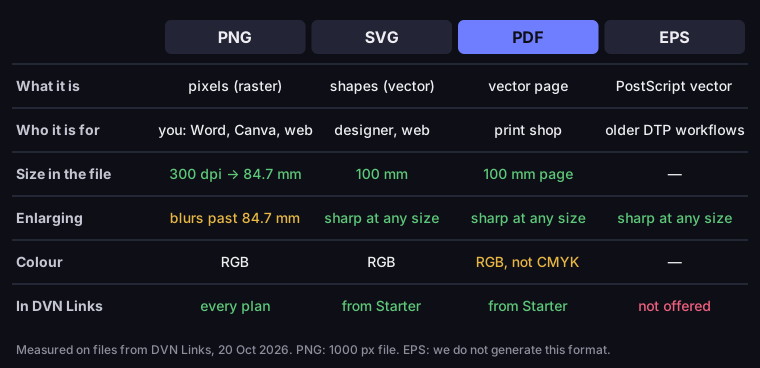
Which QR code file for print
PNG, SVG, PDF and EPS — what each is, who it's for and what it contains
Source: measurement of DVN Links files, 20 Oct 2026; Adobe (EPS)
Figure description
Table comparing four file types for a printed QR code. PNG: pixels, for you (Word, Canva, web); our 1000 px file states 300 dpi, so it is placed at 84.7 mm and blurs when enlarged beyond that; RGB; on every plan. SVG: vector shapes, for a designer or the web; states 100 mm; sharp at any size; RGB; from the Starter plan. PDF: a vector page for the print shop; 100 mm page; sharp at any size; RGB, not CMYK; from Starter. EPS: PostScript vector for older DTP workflows; sharp at any size; DVN Links does not generate it.
- PNG is an image made of pixels. It's fine for a Word document, a slide deck, a social post and small print, as long as you don't enlarge it beyond the size it carries (more below). For a QR code on a flyer or a business card, that's plenty.
- SVG stores shapes, not pixels: the module squares are described by coordinates, so the program recalculates them at every size. It's the file for a designer placing the code in Illustrator, Affinity, Inkscape or Canva, and for a website.
- PDF is a ready-to-print page. Our PDF is vector and its page is the size of the code (100 × 100 mm), so the print shop can drop it into a layout or print it as is.
- EPS is an older vector format. Adobe says it created Encapsulated PostScript in the late 1980s and that the format has been "overtaken by more modern file formats such as PDFs", although some vendors and older equipment still require it (Adobe, EPS file). We don't generate EPS. If a printer insists on it, a designer can make one from our PDF or SVG in a vector program.
One distinction that search engines blur: "QR code PDF" here means the file format holding a code for print. A QR code that opens a PDF document when scanned is a different topic — covered in our article on the QR code for a PDF.
Raster vs vector: what happens when you enlarge
An enlarged PNG gets no new detail — the program invents in-between pixels, so module edges turn grey; SVG and PDF redraw the edges from scratch at every size. In a QR code the module edge is the whole message: the decoder tells a dark square from a light one.
We tested this on one code (a short link, 33 modules including the quiet zone), scaled as for a 10 cm print at 300 dpi, i.e. to 1181 pixels. We enlarged a 250 px PNG and a 1000 px PNG to that width with bicubic interpolation, and rendered the SVG directly at 1181 px. Then we counted how many pixels at the corner of a finder pattern were grey — neither white nor black.
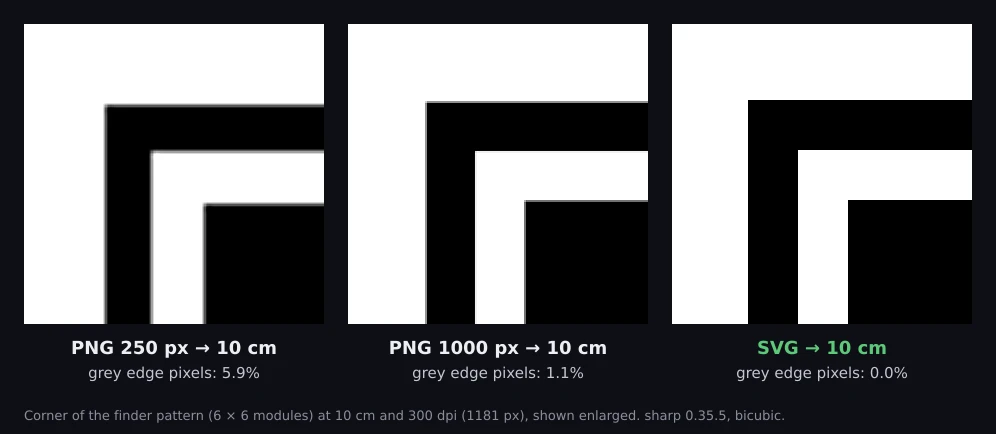
PNG and SVG enlarged to 10 cm at 300 dpi
corner of the finder pattern, 6 × 6 modules, magnified
Source: DVN Links measurement, 20 Oct 2026 (sharp 0.35.5, bicubic interpolation)
Figure description
Three crops of the same corner of a QR code scaled to 10 cm at 300 dpi (1181 px). PNG 250 px: module edges clearly blurred, 5.9% grey pixels. PNG 1000 px: edges almost sharp, 1.1% grey pixels. SVG: perfectly sharp edges, 0.0% grey pixels.
The result: 5.9% grey pixels for the 250 px PNG, 1.1% for the 1000 px PNG, 0.0% for the SVG. The takeaway isn't "PNG is bad". A 1000 px PNG at 10 cm is nearly as sharp as a vector; a 250 px PNG at 10 cm is not. The limit is set by pixels per millimetre — see the next section.
A second thing only visible at pixel level: modules in a PNG aren't all the same size. Our 1000 px file without a logo has 33 modules, or 30.3 pixels per module. Pixels can't be split, so some modules are 30 pixels wide and some 31; in the 250 px file, 7 or 8. GS1 requires the module to be constant across the symbol: "The X-dimension SHALL be constant throughout a given symbol" (GS1 General Specifications 26.0, §5.7.4.4). At 30 pixels a one-pixel difference is about 3%; at 7 pixels it is about 14%. An SVG doesn't have this problem, because a module is exactly one grid unit. Our file also asks for hard edges with shape-rendering="crispEdges". The SVG specification describes this as a request to emphasise clean edges, for which the program may turn off anti-aliasing (W3C, SVG 2).
How large a PNG can print — px per mm at 300 dpi
A PNG stretches to: pixels ÷ dpi × 25.4 mm — for a 1000 px file at 300 dpi that's 84.7 mm. The formula follows from the definition: dpi is dots per inch, and an inch is 25.4 mm. Which dpi to assume depends on the print. DENSO WAVE, which invented the QR code, works out module size from the printer's resolution: at 300 dpi and 5 dots per module you get 0.42 mm (DENSO WAVE, Module size). We assume 300 dpi — that's the value we write into our PNG files.
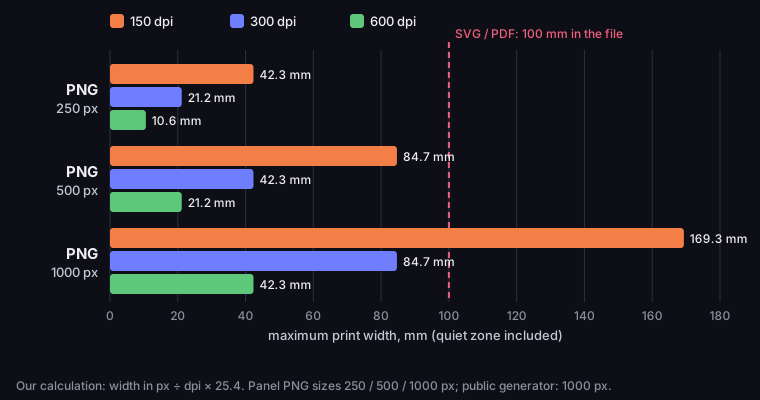
How large a QR code PNG prints sharp
maximum print width at 150, 300 and 600 dpi, in mm (quiet zone included)
Source: DVN Links calculation (px ÷ dpi × 25.4), 20 Oct 2026
Figure description
Horizontal bar chart of the maximum print width of a PNG QR code. PNG 250 px: 42.3 mm at 150 dpi, 21.2 mm at 300 dpi, 10.6 mm at 600 dpi. PNG 500 px: 84.7 mm, 42.3 mm, 21.2 mm. PNG 1000 px: 169.3 mm, 84.7 mm, 42.3 mm. A dashed line marks 100 mm, the width stated in our SVG and PDF files, which are vector and print sharp at any size.
What that means for files from DVN Links:
- The public generator gives you a 1000 px wide PNG (with the caption band under the code the file is 1000 × 1128 px). At 300 dpi that's a code 84.7 mm wide — enough for a flyer, an A4 poster with the code in a corner, or a window sticker.
- The dashboard offers 250, 500 and 1000 px PNGs on every plan. At 300 dpi a 250 px file is just 21.2 mm, so take 1000 px for print.
- A bigger code — a roll-up, a banner, a vehicle wrap — should come from the SVG or PDF, not an enlarged PNG.
Now a detail that until recently broke imports. A PNG keeps its size "in centimetres" in an optional pHYs chunk. The PNG specification describes it as the intended pixel size for display: "The pHYs chunk specifies the intended pixel size or aspect ratio for display of the image" (W3C, PNG Specification). Layout programs use it to decide how big to place an image. Until 19 October 2026, our PNG with a caption stated about 25.4 dpi there, so a program could place a 1000 px code as an image roughly a metre wide. The file without a logo had no such chunk at all, and programs then fall back to their own default. We fixed it: today every QR code PNG from the generator and the dashboard states 300 dpi. Our measurement of 20 October 2026 confirms this for the generator file and for the 250, 500 and 1000 px dashboard files reproduced in the script. If you have an older download that comes in huge, the code isn't broken — set the width by hand or download the file again.
Minimum code size is a separate question: it depends on the number of modules, not on the file format. We cover it, with a formula, in our article on the minimum QR code size.
What's inside a QR code SVG file
Our SVG states a width of 100 mm, uses a grid in modules, draws all modules as one path, embeds the logo as a PNG image and keeps the caption as plain text. Here is the file the dashboard exports for a free-plan design (logo and caption), annotated.
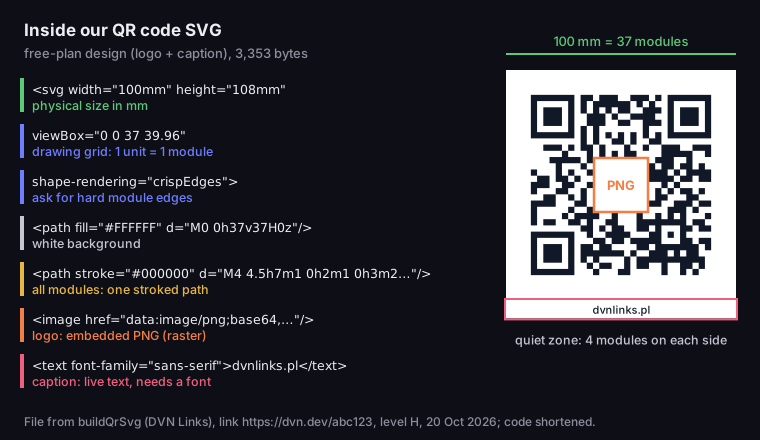
Anatomy of a QR code SVG file
a DVN Links dashboard file with logo and caption, source shortened
Source: file from buildQrSvg (DVN Links), 20 Oct 2026
Figure description
Annotated source of the SVG our dashboard exports for a free-plan design. The svg element states width 100mm and height 108mm; the viewBox 0 0 37 39.96 counts in modules (37 = 29 code modules plus a 4-module quiet zone on each side); shape-rendering crispEdges asks for hard edges. One path fills the white background; one stroked path draws all the dark modules. The logo is an embedded PNG image, so it is raster even in a vector file. The caption dvnlinks.pl is live text in sans-serif, so it depends on the fonts installed in the program that opens it.
Line by line, what it means in practice:
width="100mm"— the file tells the program how big the code is: 100 mm including the quiet zone (100 × 108 mm with the caption band). We checked that the librsvg library, which sharp and other tools use, renders it at 100 mm (283 px at 72 dpi). Design programs may differ — after placing it, check the width field.viewBox="0 0 37 39.96"— the drawing grid, counted in modules. The SVG specification describesviewBoxas a rectangle the program stretches to the given size (W3C, SVG 2 — coordinate systems). That's why the code scales cleanly as long as you keep the proportions.- The modules are one stroked path (
stroke), not a fill. Each row of modules is a line one module thick. Browsers and printers don't care, but a designer should: change the stroke weight in a program and you change the code. Before editing, it's safer to convert the stroke to shapes (usually a command along the lines of "outline stroke"). - The logo is an embedded PNG. Even in a vector file the logo is a raster image, so on a very large print it may look softer than the modules around it. How much logo a code can take is covered in our article on the QR code with logo.
- The caption is text in
sans-serif. Each program substitutes its own default sans-serif font, so the caption may look slightly different from the PNG. It has no effect on the code. The caption only appears when it's on — always on the free plan, optional from Starter.
The file without logo and caption is 1.2 kB and contains just two paths: the background and the modules. With logo and caption it's 3.4 kB.
How to place a QR code SVG or PDF in your design
Place the file, check the width, scale only proportionally and don't crop the white border — four steps that work in any program. We haven't tested imports in every layout program, so instead of menu paths for specific apps, here are the rules that don't depend on the program.
- Place the file as an object, not as a background. Bring the SVG or PDF into your layout with the import or place command. Don't screenshot the code or paste it as a picture — that turns the vector into a raster at screen resolution.
- Check the width. Our file says "100 mm". If the program placed it at a different size, set the width by hand; the height follows as long as the proportions are locked.
- Scale only proportionally. A stretched code has rectangular modules, and GS1 requires the module size to be constant across the symbol (GS1 General Specifications 26.0, §5.7.4.4).
- Keep the white border. The quiet zone is part of the file: 4 modules on each side, because DENSO WAVE requires it: "QR Code requires a four-module wide margin at all sides of a symbol" (DENSO WAVE, Securing Margin). Cropping it so the code "fits better" is a common reason codes don't work.
Be careful with colour. Dark modules on a light background are a must; check a coloured code on a test print. From the Starter plan you can set colours in the dashboard, and the file arrives ready.
PDF for the print shop: black, CMYK, bleed and quiet zone
Our PDF is a 100 × 100 mm vector page in RGB colours — a print shop can use it in a layout, but ask them directly about black and print preparation. What's in the file, according to our measurement:
- Size: a 100 × 100 mm page (100 × 108 mm with the caption), the code fills the full width including the quiet zone.
- Modules: one filled path. That's on purpose: with separate rectangles, PDF viewers showed hairline seams between rows.
- Colour: RGB. The file contains only RGB colour operators — no CMYK and no colour profile.
- Caption font: Helvetica, one of the standard PDF fonts, not embedded in the file. This only applies to codes with a caption.
What it isn't: PDF/X. PDF/X is the ISO 15930 family of standards for PDFs exchanged for prepress. The US Library of Congress lists its constraints, including "All fonts and images must be embedded" and colour spaces specified through an "OutputIntent" with an embedded profile (Library of Congress, PDF/X). Our file doesn't meet them: it has no OutputIntent or profile, and with a caption the font isn't embedded (the logo is). For a print shop that wants a PDF/X layout this isn't a problem: the designer places our code in the design, and the whole design is exported as PDF/X.
Three things worth telling the print shop:
- "Print the code in black ink only (100% K)." Our file stores black as RGB, and prepress decides which inks to print it with — so say it explicitly. GS1 says a code printed in black ink on white paper will almost certainly get the top grade for symbol contrast. White papers typically reflect over 75% of light, black ink about 3–8%. Coloured backgrounds and inks affect the result, and high gloss can make the background reflect less than expected (GS1 General Specifications 26.0, §5.12.5.11.1).
- "What minimum size and which substrate?" GS1 advises asking the printer about the minimum recommended symbol size for their press and about colour and substrate (GS1 General Specifications 26.0, §5.12.2.4). With ink spread, printed bars come out wider than in the file, and the correction is made in the master file after agreeing it with the printer (§5.12.4.2.1).
- "The code must stay clear of the trim line." Bleed is for backgrounds and graphics meant to reach the edge; the code should sit well away from the cut, quiet zone and all.
Barcode SVG and PDF — here the size matters
With a barcode, size is not a matter of taste: EAN-13 has a nominal size and an allowed magnification range, so our barcode files state exactly the size the standard sets. Measurement for an EAN-13 from the generator:
- SVG:
width="37.29mm" height="27.39mm", module 0.33 mm — the nominal size (100%). - PDF: a 37.29 × 27.39 mm page, bars converted to filled rectangles, digits as curves, so there's no font to embed.
- Print PNG: 894 × 661 px, 8 pixels per module, with a stated resolution of about 616 dpi. A program therefore places it at 100% — about 37 mm, the same as the SVG.
GS1 Poland says the size of EAN-13 codes "can vary smoothly in the range from 0.80 to 2.00 of the nominal size" (GS1 Poland, barcode dimensions, our translation). That's why the stated size matters: the same PNG placed as if it were 300 dpi would come out 75.7 mm wide, about 203% — beyond the upper limit. Until 19 October 2026 our barcode PNG stated no resolution; today it does and places at 100%. EAN-13, EAN-8 and UPC-A print sizes are covered in our article on the EAN number, and the other symbols, such as Code 128 or ITF-14, are compared in our guide to barcodes.
For QR codes, GS1 gives a module range (0.396–0.990 mm) only for codes with GS1 Digital Link on retail packaging, read by phones (GS1 General Specifications 26.0, table 5-46). On a poster or flyer only the minimum module matters, so the 100 mm in our QR code SVG and PDF is a starting size, not a requirement.
Barcode SVG and PDF files come with the Starter plan, and from the Pro plan there's bulk mode: up to 100 codes at once, as a ZIP of SVG files or a single PDF with one code per page. Generator: barcodes.
Where to get a QR code SVG and PDF in DVN Links
A 1000 px PNG is free in the generator; SVG and PDF are downloaded in the dashboard next to every short link, from the Starter plan.
- No account: the QR code generator gives a 1000 px PNG with the DVN Links logo and the caption dvnlinks.pl, stating 300 dpi.
- In the dashboard, any plan: 250, 500 or 1000 px PNGs next to each short link. On the free plan the code carries the DVN Links logo and caption, and the account has 1,000 clicks a month.
- From the Starter plan: SVG and PDF for QR codes and barcodes, your own code colours, and the caption can be turned off. Details and prices (net, plus VAT) are on the pricing page, and the features are described on the features page.
- Via the API:
GET /api/v1/links/:id/qr?format=svgorformat=pdfreturns the vector file on plans with SVG/PDF export;format=pngreturns the stored image. Handy when your own system generates codes for print.
How to make a code in the first place, and how static and dynamic codes differ, is in our guide to QR codes.
QR code SVG — frequently asked questions
In the DVN Links dashboard, next to a short link, beside the PNG button — from the Starter plan. The public generator without an account gives a 1000 px PNG, which at 300 dpi covers a code 84.7 mm wide.
Yes, as long as you don't enlarge it beyond pixels ÷ dpi × 25.4. A 1000 px PNG is 84.7 mm at 300 dpi. Make bigger codes from the SVG or PDF. Don't print the 250 px preview — at 300 dpi it's only 21.2 mm.
A vector stores shapes, not pixels, so it's sharp at any size and its modules are exactly equal. Whether the code scans, though, depends on module size, contrast and the quiet zone, not on the file format — a vector code that's too small won't work either. More in our article on the minimum QR code size.
Not from us — we generate PNG, SVG and PDF. If a printer insists on EPS, a designer can open our PDF or SVG in a vector program and export it as EPS. Adobe itself says EPS has been overtaken by more modern formats such as PDF (Adobe).
Black (100% K) on white is safest, because it gives the highest contrast (GS1 General Specifications 26.0). Colour is possible if the modules stay clearly darker than the background — but only after a test print on the final paper.
QR code SVG and PDF for print
Download your QR code as SVG and PDF from the dashboard — from the Starter plan, barcodes included. Without an account, the generator makes a 1000 px PNG, enough for a code 8.5 cm wide at 300 dpi.