QR code for PDF: make one that survives file changes
A QR code for a PDF holds the file's address, not the file. Three ways to make one — Google Drive, your own website, a file hosted with DVN Links — and what each does to a printed code when the file changes.
A QR code for PDF files is a code that opens a file when scanned — a price list, a manual, a flyer, a CV or a photo. The file itself never goes into the code: a PDF QR code only carries an address where the file sits publicly online. Where you put that file decides everything that matters after printing: whether the code survives a new version of the file, whether it opens without a login, and whether you can tell how many people scanned it. Below are three ways to do it — Google Drive with a plain code, a file on your own website, and a file uploaded to DVN Links — compared on exactly those points, with what our code does when you replace a file, and a measurement of how long a 1, 5 and 25 MB PDF takes to download on typical mobile network profiles.
A QR code for PDF holds a link, not the file
Every QR code for a PDF carries a link rather than the document, and that link decides whether the code still works after the file changes. The largest QR code (version 40 at the lowest error correction level) holds 2,953 bytes of data, as calculated by the qrcode library behind our QR code generator. The smallest of our test PDFs — one page, padded with data the way a price list with photos would be — is 1 MB, 355 times more. That is why every "PDF QR code" tool does the same thing: you upload the file somewhere and the code gets its address. Adobe says so plainly: you "must upload the PDF to an online file-sharing platform and set it to be publicly available" (Adobe, How to convert a PDF to a QR code, read 19 Oct 2026).
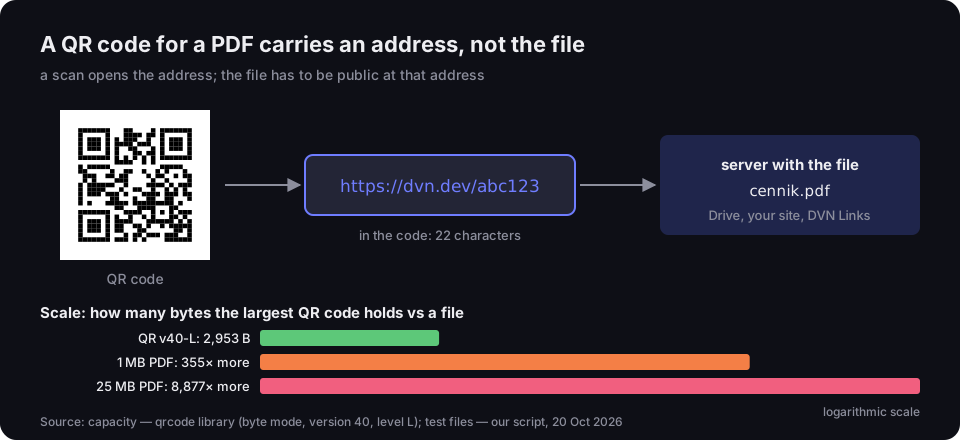
A QR code for a PDF carries an address, not the file
a scan opens the address; the file has to be public at that address
Source: qrcode library (byte mode, version 40, level L); test files — our script, 20 Oct 2026
Figure description
Diagram: the QR code contains the address https://dvn.dev/abc123, 22 characters; the address leads to a server holding cennik.pdf, which can be Google Drive, your site or DVN Links. Below, a logarithmic scale: the largest QR code, version 40 at level L, holds 2,953 bytes; a 1 MB PDF is 355 times larger, and a 25 MB PDF 8,877 times larger.
The same Adobe page also says that "a PDF QR code is dynamic in nature", so you can edit its content any time without the code changing. That is only half true. A plain static code with a link to a file is fixed: all you can change is what sits at that same address. If the new file gets a new address — which happens a lot — the old code keeps opening the old file, or an error. The difference between a static code and one whose target you can change is covered in our guide on how to make a QR code. Here, one question matters: what happens to the address when you swap the file.
One mix-up to avoid: if you are looking for a QR code saved as a PDF file for your printer, that is a different topic, covered in QR code SVG, PDF or PNG — this article is about the file the code leads to.
Option 1: Google Drive and a free static code
The cheapest route is a file on Google Drive shared with "Anyone with the link" and a static code containing that link — free, and it doesn't expire. Step by step:
- Upload the PDF or image to Google Drive.
- Right-click the file and choose "Share".
- Under "General access", change "Restricted" to "Anyone with the link".
- Leave the role as "Viewer".
- Copy the link and paste it into the QR code generator as a URL.
Google's help confirms the key point: "Anyone who has the link can use your file, without signing in to their Google Account." You pick the role from "Viewer, Commenter, or Editor" (Google Drive Help, share files, read 19 Oct 2026). Drive previews PDFs and photos, among other formats, in the browser (Google Drive Help, preview files).
One thing that's easy to miss: viewers can download the file by default. Google's permissions table answers the download question for viewers with "Yes, by default. The owner can control it." For a price list or a manual, that's usually fine. For a document you don't want handed out as a file, check the sharing settings.
Dropbox works in a similar way, with one difference. To view or edit a regular shared link, Dropbox says the person "must have a Dropbox account and be logged in", but you can share a view-only link instead, which opens without an account (Dropbox Help, share a link, read 19 Oct 2026). That's the link to put in the code. Dropbox also has two URL parameters: dl=1 forces a download instead of a display, and raw=1 bypasses Dropbox's preview page so the browser renders the file directly (Dropbox Help, force download). If you want the code to show the PDF straight away rather than a Dropbox page, try raw=1 — and check the result with a phone.
What breaks a Drive QR code: access, deletion, new versions
A code linking to Drive works as long as the file exists at the same link with the same access — and each of those three things is easy to change. The usual ways a printed code stops working:
- The file is deleted — someone tidies up Drive and removes "old price list". The code now leads to an error page.
- Access changes — someone switches the file back to "Restricted". Scanners get asked to sign in or request access.
- A new file instead of a new version — you upload "price-list-2027.pdf" as a separate file. It has a different link, so the code still opens the old one.
The last mistake is avoidable. Drive has "Manage versions", where you choose "Upload new version" and put the new file into the same document. Google's help warns: "A version might be permanently deleted after 30 days or if there are 100 newer versions", unless you mark it "Keep forever" (Google Drive Help, file versions, read 19 Oct 2026).
What that help page doesn't say outright is that the file's link stays the same after a new version is uploaded. We'd expect it to, since it's still the same file, but we have no statement from Google. So after every swap, scan the printed code and check what opens. Ten seconds that can save you a reprint.
On a Google Workspace account, also check that "Anyone with the link" is available at all — organisation settings can restrict it. If you can't see it, ask your admin before you print.
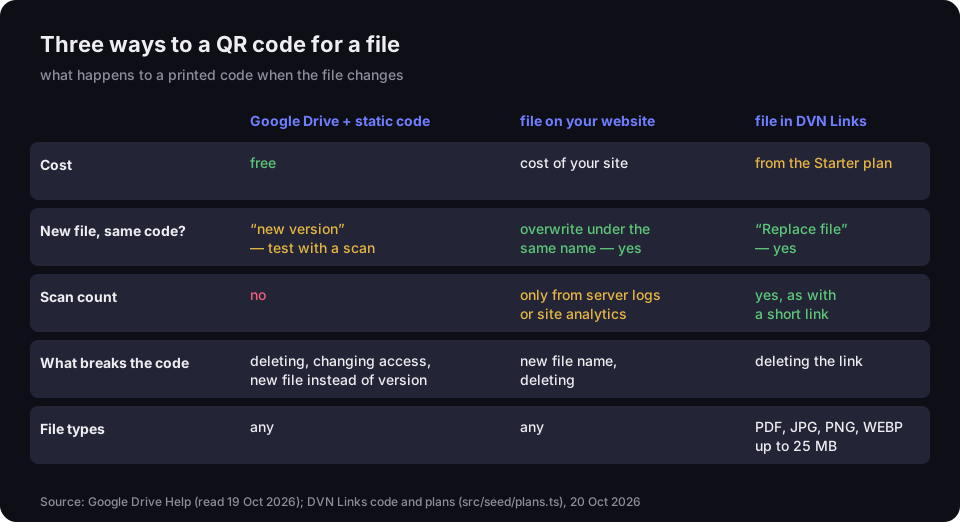
Three ways to a QR code for a file
what happens to a printed code when the file changes
Source: Google Drive Help (read 19 Oct 2026); DVN Links code and plans, 20 Oct 2026
Figure description
Table of three options. Google Drive with a static code: free; a new file keeps the code only as a new version, test with a scan; no scan count; the code breaks if the file is deleted, access changes or a new file replaces a version; any file type. File on your website: cost of your site; overwriting the file under the same name keeps the code; scans only from server logs or site analytics; the code breaks on a new file name or deletion; any file type. File in DVN Links: from the Starter plan; the Replace file button keeps the code; scan count as with a short link; the code breaks if the link is deleted; PDF, JPG, PNG and WEBP up to 25 MB.
Option 2: a file on your website
A file on your website keeps a fixed address as long as you overwrite it under the same name — a new name means a new code. If you have a company site, upload the PDF to a predictable address such as yourcompany.com/price-list.pdf and encode that. When prices change, upload the new file under the same name, replacing the old one. The code on your printouts keeps working.
The trap is the same as on Drive, just in a different place. Many content management systems rename files on every upload by adding a date, a number or -1. The new price list then lands at a different address, and the old code opens the old file — or an error if you delete it. We cover the same problem for restaurants in QR code menu, where we also compare a web page with a PDF.
The second thing site owners rarely think about: a public PDF on your site can show up in Google search results. If the document is meant only for people who scan the code — say, a trade price list — add the X-Robots-Tag: noindex header to the server response. Google gives it as the way to block indexing of non-HTML resources, "such as PDF files, video files, or image files" (Google Search Central, robots meta tag and X-Robots-Tag, read 19 Oct 2026). The header is set in server configuration, so you may need whoever runs your site.
Your site won't count scans for you either. At best you'll see file downloads in server logs, or in your analytics if it's set up to track files — and you won't be able to tell a scan from a click on a link on your site.
Option 3: a file QR code in DVN Links
On paid plans from Starter, you upload the file straight to us and get a short link with a QR code, behind which you can swap the file without reprinting. In the dashboard, when you create a link, choose "File" instead of a URL and upload a PDF or image. The dashboard sums it up: "The link and QR code open the file. You can replace the file later — the link and the printed QR code stay the same." When the price list changes, open the link details and click "Replace file".
What we accept and how much (from our code and pricing, 20 Oct 2026):
|
Plan |
Files |
Total |
|---|---|---|
|
Free |
— |
— |
|
Starter |
5 |
50 MB |
|
Pro |
50 |
1 GB |
|
Business |
500 |
10 GB |
|
Enterprise |
unlimited |
unlimited |
A single file can be up to 25 MB. We take PDF, JPG, PNG and WEBP. We detect the type from the file's first bytes, not its name: a PDF starts with %PDF-, and PNG and JPEG have their own fixed signatures. So a Word document renamed to .pdf won't get through. We deliberately don't accept formats that can run a script, such as SVG or HTML — the file is served from our domain, and we don't want someone else's file running anything on it.
What you get besides the file:
- Scan statistics — as with any short link: country, device, browser. We don't tell a scan from a click, so if you also send the same link by email, you'll see the total.
- Kept out of Google — every file is served with
X-Robots-Tag: noindex, so it won't appear in search results. - Opened in the browser — we send the file with a request to display it (
Content-Disposition: inline) and support for range requests, which PDF viewers can use to load it in parts. Whether a phone shows the PDF straight away or downloads it first depends on its browser and system, not on us — check on your own phone.
A file link can have a password and a click limit, like any short link from the Starter plan. The password protects the short link, though, not the file itself: once unlocked, the file has a visible /plik/… address that opens for anyone you pass it to. Details, and what a password cannot do, are in our one time link guide.
What's not included: files on the Free plan, link monitoring (the file lives with us, so there's no outside page to watch) and smart link rules — a file link can't send different devices to different places. You upload files in the dashboard once signed in; the public QR code generator doesn't take files. Compare plans and limits on the pricing page (prices excl. VAT), and see everything our tools do on the features page. To upload your first file, create an account.
What happens when you replace a file (from our code)
When you click "Replace file", the new file gets a new ID, the link is repointed to it and the old file is deleted — so every scan goes straight to the new version. Step by step:
- You upload the new file. We check its type from the first bytes and the storage limit — when replacing, the new file's size counts instead of the old one's, not both.
- The file is stored at a new address, for example
/plik/Binstead of/plik/A. - The short link (the one in the QR code) now redirects to
/plik/B. - The old file at
/plik/Ais deleted.
One detail concerns the browser cache. The file itself is sent with Cache-Control: public, max-age=3600, so a browser may keep it for an hour. The short link's redirect, though, is a 302 without such a header, so the browser doesn't remember where it goes and asks our server on every scan. A scan after the swap therefore gets the new address /plik/B, which the browser has never seen — and downloads the new file. The hour of caching only affects someone who saved the old /plik/A address and opens it directly: for that hour they may see the old copy from their browser, and after that a 404.
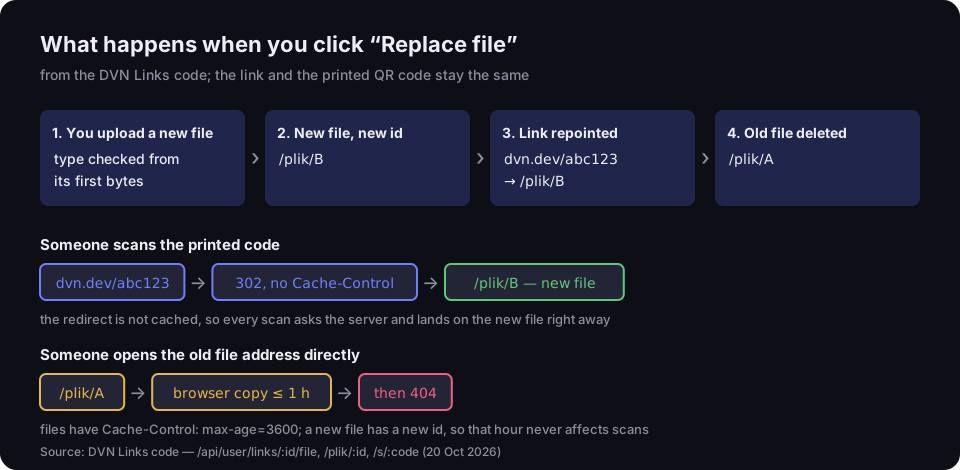
What happens when you click “Replace file”
from the DVN Links code; the link and the printed QR code stay the same
Source: DVN Links code — /api/user/links/:id/file, /plik/:id, /s/:code (20 Oct 2026)
Figure description
Four steps: 1. you upload a new file, type checked from its first bytes; 2. the new file gets a new id, /plik/B; 3. the link dvn.dev/abc123 is repointed to /plik/B; 4. the old file /plik/A is deleted. First lane: someone scans the printed code, dvn.dev/abc123 responds with a 302 redirect without Cache-Control to /plik/B, the new file; the redirect isn't cached, so every scan lands on the new file right away. Second lane: someone opens the old address /plik/A directly; they may see a browser copy for at most an hour, then a 404 error.
This setup — a new file address on every swap and a short link that never changes — is what Adobe calls a "dynamic" code. Only here the dynamic part is the short link, not the file or the code.
Which option to choose
If the file changes less than once a year and you don't need a scan count, Google Drive and a free code are enough; if it changes seasonally or you want to know how many people reached it, put the file behind a short link. In common situations:
- Terms, a user manual, a warranty card — the file lives for years and rarely changes. Drive or your website with a static code. On every change, remember: new version, not new file.
- A price list, a seasonal offer, a class timetable — changes a few times a year while printouts stay up for a long time. This is where "new file instead of new version" happens most, so a file behind a short link that you swap with one button is the safer choice.
- Trade fair materials, a campaign flyer, an invitation — what counts is how many people scanned. Only a short link gives you statistics; Drive and a plain website won't.
- A file you don't want in Google — in DVN Links there's nothing to do; on your own site, add the
noindexheader. Drive has no such setting, and its help doesn't say whether a file shared with "Anyone with the link" can show up in search results.
When in doubt, weigh the cost of getting it wrong: compare the price of a reprint with a plan on the pricing page. And remember that nobody will report a free code that stopped working — you'll only find out when a customer asks why nothing opens.
PDFs on mobile: file size vs time to open
On a slow connection every megabyte of PDF is seconds of waiting — a 25 MB file takes almost 9 minutes on the 3G profile, while the same file shrunk to 1 MB takes 25 seconds. We have no reliable primary source for mobile speeds in any one country, so we measured something repeatable: the time from scan (the 302 redirect) to the file's last byte, on three network profiles developers use to test sites in Chrome. The profiles come from Chrome DevTools source code and are deliberately throttled: "3G" is about 0.4 Mbps, "Slow 4G" 1.44 Mbps and "Fast 4G" 8.1 Mbps, each with added latency (Chrome DevTools, NetworkManager.ts, read 19 Oct 2026). They are test profiles, not average speeds anywhere.
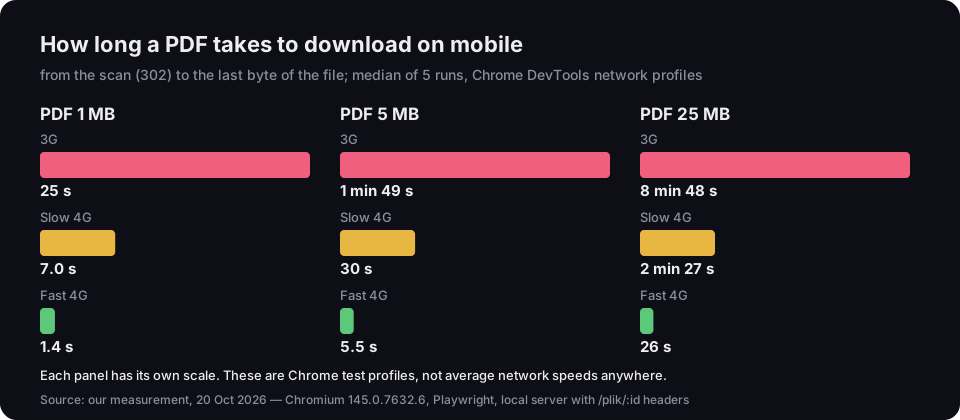
How long a PDF takes to download on mobile
from the scan (302) to the file's last byte; median of 5 runs, Chrome DevTools profiles
Source: our measurement, 20 Oct 2026 — Chromium, Playwright, local server with /plik/:id headers
Figure description
Three panels, each with its own scale. 1 MB PDF: 3G 25 s, Slow 4G 7.0 s, Fast 4G 1.4 s. 5 MB PDF: 3G 1 min 49 s, Slow 4G 30 s, Fast 4G 5.5 s. 25 MB PDF: 3G 8 min 48 s, Slow 4G 2 min 27 s, Fast 4G 26 s. These are Chrome test profiles, not average network speeds.
How we measured: a local server replayed what a phone sees after a scan — a short link with a 302 redirect, and a file with the same headers our /plik/<id> sends. The files are real one-page PDFs padded with incompressible data to 1, 5 and 25 MB, like a price list full of photos. Chromium driven by Playwright, network throttled to the DevTools profile values, every run in a fresh, empty session, five runs, median. The throttled runs were highly repeatable: the five runs differed by about 0.2 s at most. The script is in our repository, and the numbers on the chart and in this text come from one results file.
What this means for your file:
- Shrink the PDF before uploading. The program you made the price list in usually has a "screen" or "smallest file size" export — lower-resolution images are fine on a phone. Keep the print version for the printer.
- The first byte arrives fast, the whole file doesn't. The server's file response arrived after 0.34 s on Fast 4G, 1.15 s on Slow 4G and about 4 s on 3G, whatever the size. The rest is transfer time, which grows in step with file size.
- For a menu or a short notice, consider a web page instead of a PDF. A page loads in pieces and reads better on a small screen — the comparison for restaurants is in QR code menu.
QR code for an image
A QR code for a photo works just like one for a PDF: the code holds a link to a JPG, PNG or WEBP file, and the phone opens the image in the browser. All three options in this article work for images too — Drive, your website, and a file in DVN Links, where we accept JPG, PNG and WEBP. An album that wedding guests add their own photos to is a different case — see wedding QR code.
With photos, size matters even more than with PDFs. A photo straight from a camera, or from a phone at top quality, can weigh several megabytes, while a phone screen only needs a scaled-down version. Before uploading, resize it or export it as a lower-quality JPG or WEBP — the chart in the previous section shows what each megabyte costs on a slow connection.
Don't confuse this with reading a QR code from a photo — that's a different need entirely. And if you want a code for a video, a video file is not a good idea and we don't accept one: upload the video to YouTube and encode the link, as in our article on the YouTube QR code.
Finally, whichever route you take: before printing the full run, make a test print and scan it with two different phones. If the code won't read, the usual causes — size, contrast, quiet zone — are covered in QR code not scanning.
Frequently asked questions
Upload the PDF to Google Drive, share it with "Anyone with the link" as "Viewer", copy the link and paste it into the QR code generator as a URL. The code is static: it doesn't expire and works as long as the file stays on Drive with the same access.
Yes, if the file's address stays the same. On Drive, upload a new version via "Manage versions" and check with a scan what opens. On your own site, overwrite the file under the same name. In DVN Links, click "Replace file" — the link and the printed code stay the same.
The same way as for a PDF: put the JPG, PNG or WEBP somewhere publicly accessible and encode the link. Resize the file before uploading — a phone needs a far smaller version than a camera photo.
For Google Drive, no, if the file is shared with "Anyone with the link". For Dropbox, not for a view-only link, yes for editing — put the view-only link in the code.
A public PDF on your website can be indexed. You can block that with the X-Robots-Tag: noindex header, which Google lists as the method for PDFs and images. Files uploaded to DVN Links always carry that header.