How to scan a QR code: iPhone, Android, photo and PC
How to scan a QR code with an iPhone or Android camera, from a photo or screenshot, or on a computer — no app to install. Plus what happens after the scan and what to check before you open the link.
How to scan a QR code: open your phone's camera, point it at the code so the whole code fits on the screen, and tap the link that appears. You don't need to take a photo or install an app. The scanner is built into the iPhone camera and into Android phone cameras, as Apple, Google and Samsung say plainly in their help pages. The one exception is a code on the screen of the same phone — in an email, a PDF ticket, a screenshot. You can't point the camera at it, but the phone can read it from the image. Below: steps for iPhone, Pixel, Samsung and Windows, our measurement of how small a code on a screenshot can be, and what happens between the scan and the page opening.
How to scan a QR code with your phone in 3 steps
On any recent phone a scan works the same way: camera, the whole code in frame, tap the link. Only the button names differ.
- Open the camera in its normal photo mode. On iPhone, Apple says to use Photo mode (Apple, iPhone User Guide). Don't switch to video, portrait or panorama.
- Hold the phone so the whole code is visible. Google's Pixel camera help says it word for word: "Make sure the entire code shows on your screen" (Google, Pixel Camera Help). The code doesn't have to fill the frame, but it can't be cut off.
- Wait a moment and tap the link that appears. Don't press the shutter. Samsung stresses that you don't need to take a picture to scan a code (Samsung, Scan a QR code), and Google says the same: "You don't need to take a picture".
If nothing shows up, move the phone back a little. Too close, the camera can't focus and the code no longer fits in the frame. The table shows where the scanner is on your device.
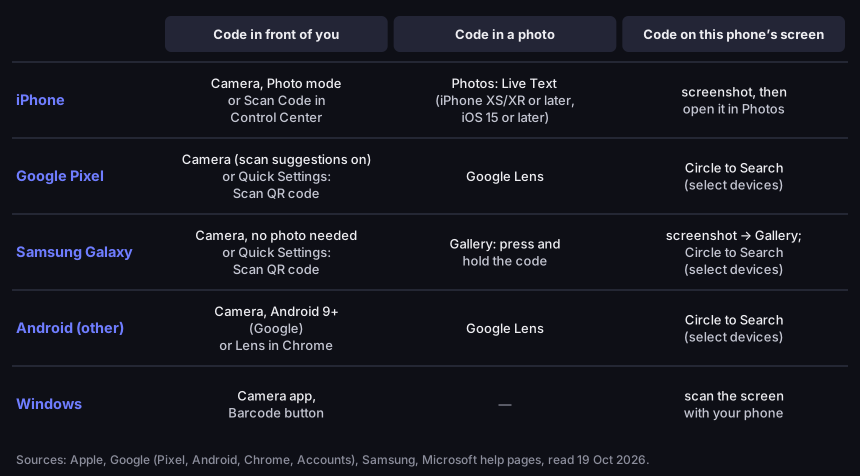
Where the QR scanner is on your device
a code in front of you, in a photo, or on the same phone's screen
Source: Apple, Google, Samsung and Microsoft help pages, read 19 Oct 2026
Figure description
Table of built-in scanners. iPhone: code in front of you — Camera in Photo mode or Scan Code in Control Center; code in a photo — Photos with Live Text (iPhone XS/XR or later, iOS 15 or later); code on the phone's screen — take a screenshot and open it in Photos. Google Pixel: Camera with scan suggestions on, or Quick Settings, Scan QR code; in a photo — Google Lens; on the screen — Circle to Search on select devices. Samsung Galaxy: Camera without taking a photo, or Quick Settings, Scan QR code; in a photo — Gallery, press and hold the code; on the screen — screenshot to Gallery, or Circle to Search. Other Android phones: Camera, Android 9 or later according to Google, or Lens in Chrome; in a photo — Google Lens; on the screen — Circle to Search. Windows: Camera app with the Barcode button; a code on the computer screen — scan it with your phone.
How to scan a QR code with an iPhone
An iPhone has two built-in scanners: the Camera app and the Scan Code button in Control Center. Both work with nothing to install, on iPhone and on iPad.
Camera
Apple's help page: "Open the Camera app from the Home Screen, Lock Screen, or Control Center; or from the Camera Control on supported models." Then: "Hold your device so that the QR code appears, then tap the link to open the content" (Apple, Scan a QR code). The iPhone User Guide adds that the link appears at the bottom of the screen (Apple, iPhone User Guide). This matters: before you tap, you can see the address you'll land on. Read it — more on that in the safety section.
Control Center: the Scan Code button
The second option is a separate scanner. Apple: "Open Control Center and tap the Scan Code button." If it isn't there, add it yourself: "Touch and hold the background of the screen, then tap the Add a Control button. In the Control Center gallery, tap the Scan Code control" (Apple, Scan a QR code).
Low light and newer models
In low light, Apple suggests the flashlight: "Tip: Tap the flashlight to add more light" (Apple, iPhone User Guide). On supported models you can also open the camera with Camera Control, and the rest is the same: code in frame, tap the link.
Many sites repeat which iOS version first put a QR scanner in the camera, but the Apple pages we read don't say, so we don't either. If your iPhone runs a current system, the scanner is there.
How to scan a QR code on Android
On Android the scanner lives in the camera, in Quick Settings and in Google Lens — which one depends on the phone's maker. Google's Account Help, on signing in with a QR code, says you need Android 9 or later to scan QR codes with the built-in camera (Google Account Help). That's general guidance from Google; manufacturers add their own shortcuts, so Pixel and Samsung get their own sections below.
Google Pixel
The Pixel camera spots a code by itself as long as "Camera scan suggestions" is turned on. Point the camera at the code, make sure all of it is on the screen and tap the link. The other way is a Quick Settings tile: swipe down from the top of the screen and tap "Scan QR code". Google adds that Google Lens scans QR codes too (Google, Pixel Camera Help).
Samsung Galaxy
On a Samsung the regular camera works — again without a photo: "You do not need to take a picture to scan a QR code." Samsung rates the Quick Settings scanner higher, though. It says the scanner gives you "more control over the detected QR code before opening it", and calls it the recommended way to scan on Galaxy phones (Samsung, Scan a QR code). In practice you see what's in the code first, then decide whether to open it. The instructions come from Samsung's Canadian site; menu names on your phone may vary by region and model.
Google Lens in Chrome
If your phone's camera ignores codes, use Google Lens. In Chrome on Android, tap the Lens icon in the search bar, put the code in the box and tap the link that pops up (Google, Chrome Help). The Pixel help page also names Lens as the second way to scan, so it is a fallback that doesn't depend on the camera app your phone maker ships.
How to scan a QR code from a photo or screenshot
A code in a photo, in your gallery or on the same phone's screen can be read without a second device — the phone reads it from the image, not through the camera. This is the most common case of a camera that "does nothing": the code arrived in an email, a PDF ticket or a message.
iPhone. Apple's Live Text "recognizes information within your photos, videos, and images you find online". The feature itself needs an iPhone XS, XR or later with iOS 15 or later (Apple, Live Text); Apple's help pages don't say from which iOS version it also recognises QR codes in photos. On a recognised image, Live Text offers quick actions, such as opening a website (Apple, iPhone User Guide — Live Text). Apple's developer documentation adds that in iOS apps, a long press on a QR code in an image follows the link or takes another action, depending on what the code holds (Apple Developer, VisionKit). For a code on your screen: take a screenshot, open it in Photos, then press and hold the code or tap the Live Text button.
Android. Samsung spells it out: open the saved image in Gallery, then "press and hold the QR code until a notification appears" (Samsung). On select Android phones there is also Circle to Search, which according to Google scans codes "without a camera". It is especially handy for codes in emails, PDFs, photos, apps and videos. Just circle the code with your finger (Android, How to scan QR codes). No screenshot needed. On other phones, open the image in Google Lens.
How small can a QR code on a screenshot be?
In our measurement the decoder read a code reliably from about 3 pixels per module — around 100 px wide for a short link, over 200 px for a long one. A module is the smallest square in the code. It's a practical question: a code cropped from a chat or shrunk in an email can be tiny, and every time an image is sent it gets compressed again.
We tested it with a script on 20 October 2026. The code was drawn with the qrcode library (the one our generator uses, error correction level M), shrunk to every width from 1 to 5 pixels per module, saved as JPEG at quality 60 and 95, and read with the jsQR decoder. Four contents: a short link, a wa.me link with no message, a link with four UTM parameters, and a wa.me link with a 119-character message in Polish, accents included.
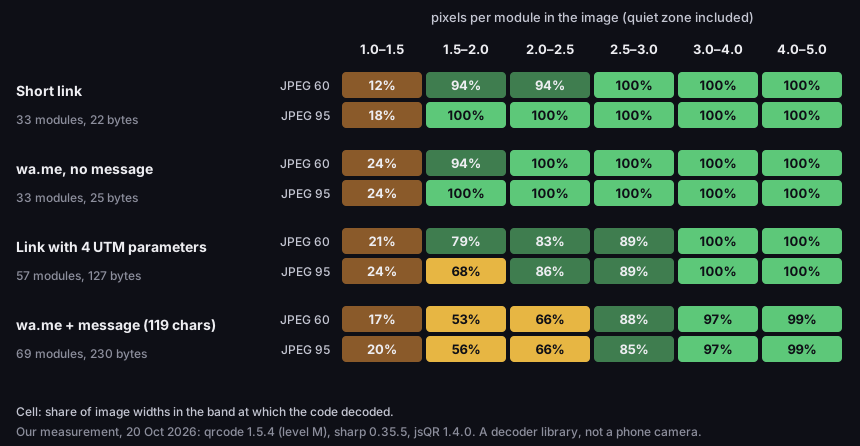
How small a QR code on a screenshot can be
share of image widths at which the code decoded, by pixels per module
Source: DVN Links measurement, 20 Oct 2026 (qrcode 1.5.4, sharp 0.35.5, jsQR 1.4.0) — a decoder library, not a phone camera
Figure description
Heat map, our measurement with the jsQR library. Short link (33 modules): at 1–1.5 px per module it decoded at 12% (JPEG 60) and 18% (JPEG 95) of widths, from 1.5 px per module at 94–100%, from 2.5 px at 100%. wa.me link with no message (33 modules): 24% at 1–1.5 px, then 94–100%. Link with 4 UTM parameters (57 modules): 21–24% at 1–1.5 px, 68–89% between 1.5 and 3 px, 100% from 3 px. wa.me link with a 119-character message (69 modules): 17–20% at 1–1.5 px, 53–88% between 1.5 and 3 px, 97–99% from 3 px.
What the measurement shows:
- Below 1.5 pixels per module, a code is a lottery. It decoded at 12–24% of widths, whatever the content.
- From 3 pixels per module, decoding was certain for three contents out of four, and 97–99% for the longest one.
- What counts is the number of modules, not the image pixels. A short link is 33 modules including the quiet zone, so 3 pixels per module means about 100 px of width. A
wa.melink with a long message has 69 modules and needs about 210 px. - JPEG quality mattered less than we expected. Quality 60 and 95 differed by up to a dozen or so points, and only below 2.5 pixels per module; from 2.5 pixels the results were almost equal.
To be fair: this is a library, not a phone camera. The result gives an order of magnitude, not what a particular model will do. The practical rule is simple, though: if a code on a screenshot won't scan, zoom in with two fingers before taking the screenshot, or ask the sender for a bigger file.
If you're the one sending a code in a message, add a plain link next to it. Someone looking at the code on the same phone can't scan it with the camera, but can open a link with one tap. A code makes sense where it ends up on another screen or on paper: a poster, a flyer, a slide in a room.
How to scan a QR code on a computer
On a computer, the easiest way is to scan the code off the monitor with your phone; Windows also has its own scanner in the Camera app. Microsoft says the Camera app "can be used to scan codes such as QR codes or barcodes". Make sure the Barcode button on the right is selected, then show the code to the camera: "The Camera app automatically scans the code" (Microsoft Support, Windows Camera app). You'll need a camera, of course — built into the laptop or plugged in. How a QR code differs from an ordinary barcode, which the Camera app reads too, is explained in our article on what a barcode is.
It's harder when the code is on your computer screen and you want to open it on the same computer. Chrome's help describes searching an image with Google Lens after a right-click (Google, Chrome Help — desktop), but that page says nothing about QR codes. On a Mac, Apple's developer documentation says the Live Text analyzer in macOS apps recognises text, and lists QR codes for iOS only; we found no Apple help page on scanning QR codes on a Mac (Apple Developer, VisionKit). So we don't recommend either as reliable. A phone pointed at the monitor always works, as long as the code on screen isn't too small. The WhatsApp Web login code is scanned from the monitor with your phone too, but from within the WhatsApp app, under Linked devices — step by step in our guide to the WhatsApp link and QR code.
Do you need an app to scan QR codes?
No — and it's better not to install one. That's the FBI's advice: "Do not download a QR code scanner app. This increases your risk of downloading malware onto your device. Most phones have a built-in scanner through the camera app" (FBI IC3, PSA of 18 January 2022).
An app makes sense in one case: a phone too old for the built-in scanner. For Android, Google sets the line at version 9 (Google Account Help). Before downloading anything, though, check Google Lens or Chrome, which may already be on your phone.
So the question "which QR code scanner should I get" often means "where is the scanner on my phone". The answer is in the table above.
What happens after you scan a QR code
A QR code is stored text: the phone reads it, shows it to you, and only opens something when you tap. A code can hold a web address, Wi-Fi details, a contact or a phone number. The phone recognises the type of content and suggests an action: open a page, join a network, save a contact. What a phone does with a Wi-Fi code is covered in our article on the Wi-Fi QR code. Content types and the difference between static and dynamic codes are in the guide on how to make a QR code.
Most often, though, a code holds a link — and more and more often a short link. A link can also lead to a file: how a code that opens a PDF or a photo works is covered in our article on the QR code for a PDF. Here's what that looks like from the server's side when the code comes from DVN Links. We describe it from our own redirect code, not from someone else's documentation.
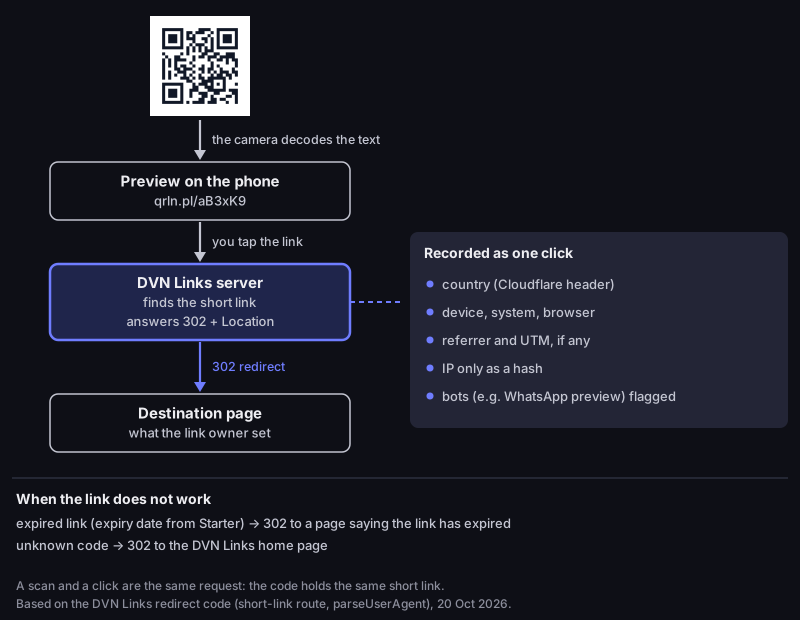
What happens after you scan a QR code
a code with a DVN Links short link, from camera to destination page
Source: DVN Links redirect code (short-link route, parseUserAgent), as of 20 Oct 2026
Figure description
Diagram. The camera decodes the text of the code and shows a preview of the address qrln.pl/aB3xK9. When you tap it, the DVN Links server finds the short link and answers with a 302 redirect to the destination page set by the link owner. At the same time it records one click: country from the Cloudflare header, device, system and browser, referrer and UTM if present, the IP address only as a hash; bots such as the WhatsApp link preview are flagged. An expired link (with an expiry date set, from the Starter plan) redirects to a page saying it has expired; an unknown code redirects to the DVN Links home page. A scan and a click are the same request.
- The preview shows the shortener's domain, not the shop's. The code holds
https://qrln.pl/aB3xK9, so the camera showsqrln.pl, not the page you'll end up on. That's not a bug; every short link works this way. - The server answers with a 302 redirect to the address the link owner set in the dashboard. That's why the destination can change after the code is printed.
- At the same moment it records a click: the country (from a header Cloudflare adds), the device type, the system and the browser, plus the referring page and UTM parameters if there are any. We store the IP address only as a hash. Link previews generated by bots, such as WhatsApp's, are flagged as bots.
- To the server, a scan and a click are the same thing. The code holds the same link someone could click in an email. The code's owner sees "clicks" in the statistics, not separate "scans". To tell them apart, they create a separate short link just for the code. What the statistics show is on the features page.
- When the link doesn't work, the server still answers with a 302: an expired link (an expiry date can be set from the Starter plan) leads to a page saying the link has expired, and an unknown code leads to the home page.
Safe scanning: 4 checks before you tap the link
The scan itself opens nothing — the risk starts when you tap, so read the address first. Scammers know this and swap codes in places where people pay in a hurry.
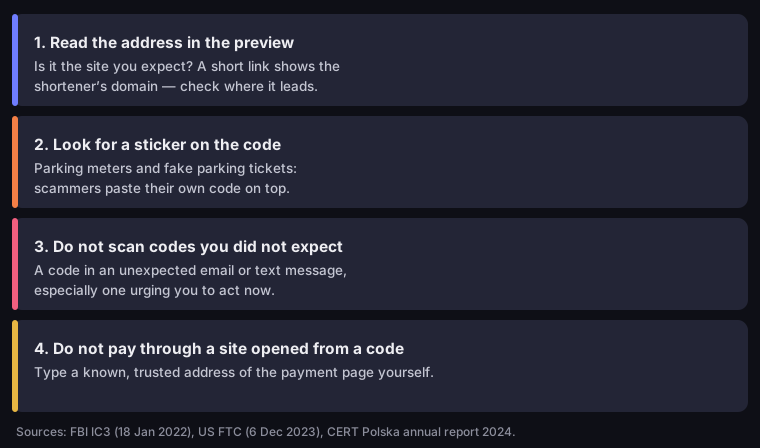
Four checks before you open a scanned link
Source: FBI IC3 (18 Jan 2022), US FTC (6 Dec 2023), CERT Polska annual report 2024
Figure description
Four cards. 1. Read the address in the preview: is it the site you expect; a short link shows the shortener's domain — check where it leads. 2. Look for a sticker on the code: parking meters and fake parking tickets, scammers paste their own code on top. 3. Do not scan codes you did not expect: a code in an unexpected email or text message, especially one urging you to act now. 4. Do not pay through a site opened from a code: type a known, trusted address of the payment page yourself.
- Read the address in the preview. The FBI's advice: "Once you scan a QR code, check the URL to make sure it is the intended site and looks authentic" (FBI IC3). Read the domain from the right, starting at the dot before the ending. If the preview shows a short link, you don't yet know where it goes. How to check without opening it is in our article on how to check if a link is safe.
- Check the code isn't a sticker. The FBI says to make sure the code hasn't been tampered with, "such as with a sticker placed on top of the original code". The US Federal Trade Commission reports scammers covering QR codes on parking meters with their own (FTC, 6 Dec 2023). In Poland, CERT Polska's report for 2024 describes notes made to look like parking fines, tucked behind windscreen wipers with a QR code to a fake payment page, and stickers on parking meters leading to a fake payment gateway (CERT Polska, Annual Report 2024, p. 17, in Polish).
- Don't scan codes you weren't expecting. The FTC: "Don't scan a QR code in an email or text message you weren't expecting — especially if it urges you to act immediately". A code in an email from your "bank" or a "courier" is the same phishing as a link in a message — except you can't see the address until you scan it.
- Don't pay through a site opened from a code. The FBI: "Avoid making payments through a site navigated to from a QR code. Instead, manually enter a known and trusted URL to complete the payment". Pay for parking in an app you already use, or type the operator's address yourself.
Samsung ends its own guide with a line that sums it up: "Only scan QR codes from sources you trust" (Samsung).
Code won't scan? Three quick checks
Before you decide the code is broken, check the frame, the light and the distance. The whole code must be on the screen, including the white border around it. In low light, turn on the flashlight or move away from glare. Too close, the camera can't focus, so pull back and move in slowly. If it still fails, the code itself is usually to blame: too small, with a cropped border or in weak contrast. Causes in checking order and a formula for the minimum size are in our article on the minimum QR code size.
How to scan a QR code — frequently asked questions
Open the photo in Photos, then press and hold the code or tap the Live Text button. Live Text needs an iPhone XS, XR or later with iOS 15 or later (Apple). If the code is small, zoom in before pressing — in our measurement the decoder needed about 3 pixels per module.
On iPhone, take a screenshot and open it in Photos. On Samsung, open the screenshot in Gallery and press and hold the code. On phones with Circle to Search, circle the code with your finger — no screenshot needed (Android).
No. The scanner is in the iPhone camera and in the camera of Android phones — Google says that takes Android 9 or later. The FBI explicitly advises against installing scanner apps, because they increase the risk of malware (FBI IC3).
Yes, on Windows: the Camera app with the Barcode button selected reads codes automatically (Microsoft). The laptop needs a camera. A code shown on the laptop's own screen is easiest to scan with your phone.
Because the code holds a short link. The camera shows what's stored in the code — qrln.pl/…, for example — and the shortener's server sends you on from there. If you want to know the destination before opening it, expand the short link as described in our article on safe links.
The scan itself is: the phone only reads text and shows you the address. The risk is in the page you open. Read the address in the preview, watch out for stickers on codes in public places, and don't pay through a site opened from a code.
You already have a scanner — make your own code
The scanner built into your phone is all you need to check any code. Make your own in the QR generator, no account needed, and scan it with the same camera before you send it on or print it.