WiFi QR code: make one that actually connects
A WiFi QR code joins guests to your network without typing the password. Which security type to pick (WPA2 or WPA3), how small you can print it, and why it belongs on a guest network.
A WiFi QR code is a code a guest scans with their phone camera to join your network without copying the password off a card. You can make one in the QR code generator without an account. Many guides skip two things. First, the security field should match the router's mode — get it wrong and the code still scans fine, but the phone may not connect. Second, the password inside the code is not encrypted: anyone who scans the code, or photographs the sticker, can read it. That is why a printed code belongs on a guest network, not on the network your computers run on.
WiFi QR code: what it contains and what the phone does with it
A Wi-Fi code holds plain text in a fixed format: WIFI:T:WPA;S:network-name;P:password;;. The format comes from ZXing, the project behind a widely used barcode-reading library: T is the security type, S the network name, P the password, and the optional H marks a hidden network (ZXing, Barcode Contents). Characters that mean something in this format — semicolon, colon, comma, double quote and backslash — have to be escaped with a backslash. Our generator does that for you, so you type the password as it is.
For years the format was a standard only by habit. Today it has a specification behind it: the Wi-Fi Alliance, the body that certifies Wi-Fi devices, registered the wifi URI scheme with IANA (provisionally, for now) and describes it as backwards compatible with the format used by popular devices, with explicit support for the security features introduced in WPA3 (IANA, wifi URI scheme). The registration states the purpose directly: a common format for passing network credentials in a QR code.
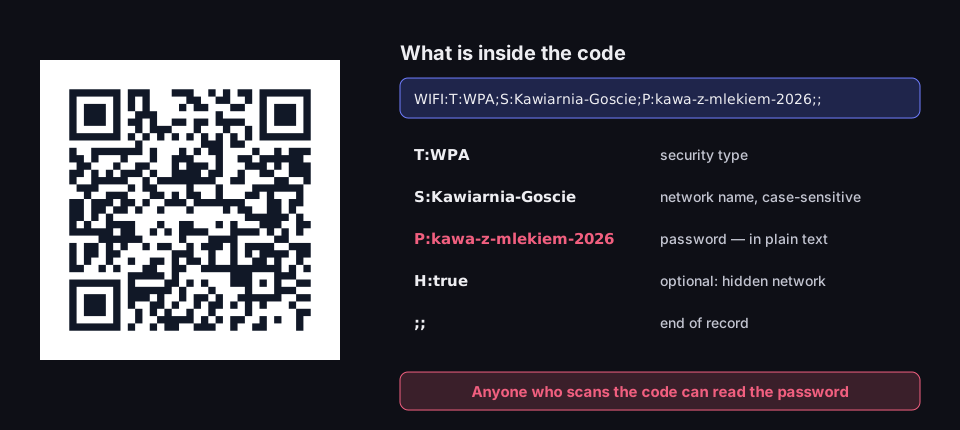
What is inside a WiFi QR code
a real code and the text it holds
Source: format per ZXing, Barcode Contents; code built with the DVN Links generator function, read 17 Oct 2026
Figure description
A real QR code next to the text it contains: WIFI:T:WPA;S:Kawiarnia-Goscie;P:kawa-z-mlekiem-2026;;. Field T:WPA is the security type, S:Kawiarnia-Goscie the case-sensitive network name, P:kawa-z-mlekiem-2026 the password in plain text, the optional H:true marks a hidden network, and two semicolons end the record. Box at the bottom: anyone who scans the code can read the password.
On Android, the operating system reads the code itself. The Wi-Fi module in Android's source code includes a parser that recognises the T, S, P and H fields and turns them into a network configuration (AOSP, WifiUriParser). The camera, or the scanner in Wi-Fi settings, then offers to join the network by name.
On iPhone the picture is less documented. ZXing's description of the format labels Wi-Fi codes "iOS 11+", i.e. supported since iOS 11. Apple's own guide to scanning codes with the camera, however, lists websites, apps, coupons and tickets and does not mention Wi-Fi networks at all (Apple, Scan a QR code). So before you put the card up, test the printout on an iPhone too.
WPA2 or WPA3: the security field
The T field tells the phone which security to expect. Android's source code shows what the system does with each value. T:WPA creates a WPA2 configuration with a password (PSK). T:SAE creates a WPA3-Personal configuration. T:nopass means a network without a password — either open or encrypted without one in OWE mode. T:WEP is an old scheme that no current router should still be using (AOSP, WifiUriParser).
Many routers with WPA3 run in mixed (transition) WPA2/WPA3 mode so that older devices can still connect. For that kind of network you pick WPA, which is also what Android does itself: when you share a network in WPA2/WPA3 transition mode from a phone, the system writes T:WPA into the code, and the settings code carries a comment saying such a code is compatible with more devices (AOSP, WifiDppUtils). For a WPA3-only network, the same code writes T:SAE.
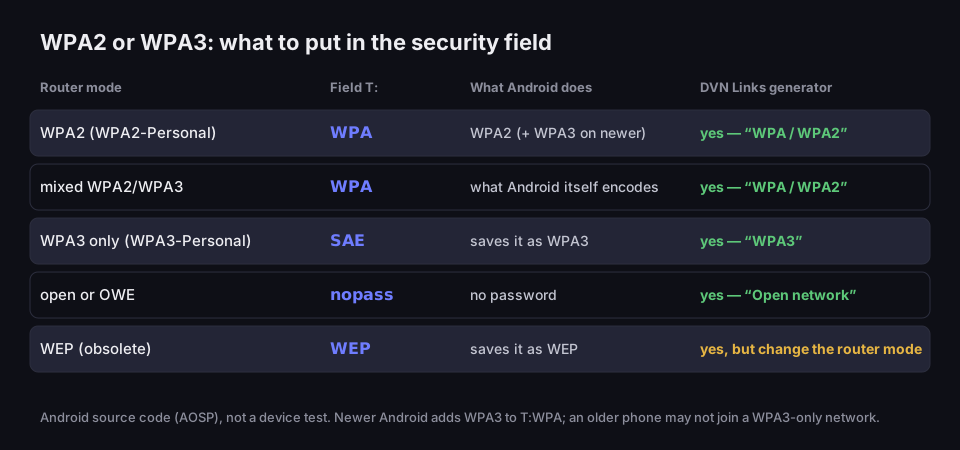
What to put in the security field
router mode, the value in the code and what Android does with it
Source: Android source code (AOSP), WifiUriParser, WifiDppUtils and WifiConfigurationUtil, read 19 Oct 2026; DVN Links generator as of 19 Oct 2026
Figure description
Decision table. WPA2 (WPA2-Personal): field T:WPA, Android saves it as WPA2 and a newer one adds a WPA3 profile, DVN Links generator yes — option WPA / WPA2. Mixed WPA2/WPA3: T:WPA, what Android itself encodes, generator yes. WPA3 only (WPA3-Personal): T:SAE, Android saves it as WPA3, DVN Links generator yes — option WPA3. Open or OWE: T:nopass, no password, generator yes — option Open network. WEP (obsolete): T:WEP, generator yes, but change the router mode. Based on Android source code, not a device test; a newer Android connects from a T:WPA code to a WPA3-only network too, an older phone may not.
The trouble may start with a router set to WPA3 only. Some guides tell you to use T:WPA for any WPA2 or WPA3 network. Android's parser then saves the network as WPA2 with a password, but that is not the end of it: when the network is saved, the Wi-Fi module adds a WPA3 (SAE) profile to every WPA2 network. This WPA2-to-WPA3 auto-upgrade is on by default in Android's code, although a phone maker can switch it off (AOSP, WifiConfigurationUtil). A recent Android phone that supports WPA3 will therefore most likely connect from a T:WPA code too. An older phone, one with the mechanism switched off, or another system — not necessarily, and Apple does not say how the iPhone treats the T field. We have not tested this on devices, hence the cautious wording. One thing is certain: for a WPA3-only network the right value is SAE, while T:WPA works only on some phones.
Our generator offers four security options: "WPA / WPA2", "WPA3", "WEP" and "Open network". The "WPA3" option writes T:SAE into the code — the same value Android uses. Pick it only when the router runs WPA3 alone. For mixed WPA2/WPA3 mode, stay with "WPA / WPA2": that code connects newer and older phones alike.
To check the router's mode, log in to its admin panel and open the wireless settings, usually under "Security". Menu names differ between manufacturers, but the mode is normally spelled out: WPA2-Personal, WPA2/WPA3-Personal or WPA3-Personal. Check the password length while you are there. Android accepts a WPA2 password of 8 to 63 characters, or exactly 64 hexadecimal characters; for WPA3, 1 to 128 characters (AOSP, WifiConfigController2). Our generator applies the same limits: a password of 8 to 63 characters with "WPA / WPA2", 1 to 128 with "WPA3", and a network name of up to 32 bytes (an accented letter such as é or ą takes 2). A password outside the range is stopped with a message, instead of producing a code that scans but never connects.
Two kinds of network fall outside what the generator can do. The first is a company network where everyone signs in with their own account (WPA2-Enterprise or WPA3-Enterprise, i.e. 802.1X). The ZXing format has extra fields for these — authentication method and identity — but our generator does not support them, and such a network is normally run by IT anyway (ZXing, Barcode Contents). The second is Wi-Fi Easy Connect: DPP: codes printed on devices themselves, such as a router or a printer, which are used to add that device to a network. Android recognises them, but they are not a guest password code and you do not generate them yourself.
WiFi QR code generator: step by step
You can make a guest network code in a few minutes, without an account:
- Open the QR code generator and choose the "WiFi" type.
- Enter the network name (SSID) exactly as it appears in the router. Case matters: "Cafe-Guests" and "cafe-guests" are two different networks to a phone.
- Choose the security type and enter the password. For a router in WPA2 or mixed WPA2/WPA3 mode, pick "WPA / WPA2". For a WPA3-only router, pick "WPA3". For a network without a password, pick "Open network"; the password field then disappears.
- Tick "Hidden network" only if the network really does not broadcast its name. It adds
H:trueto the code. Ticking it for an ordinary network gains nothing and makes the code a little denser. - Click "Download PNG". The print file is 1,000 pixels wide; the preview on the page is smaller, so do not print a screenshot.
A code from the generator without an account always carries the DVN Links logo in the middle and the dvnlinks.pl caption below it, which is why the generator encodes it at the highest error correction level (H): the logo covers part of the code and level H lets the phone rebuild it. How much logo a code can take, and why, is covered in QR code with logo. You can use the code for free, on business premises too, as long as you keep the logo and the caption.
One question worth asking of any generator is where the code is made. Ours is drawn by our server: the network details, password included, reach our API only to render the image and are not stored. The generator can also email the code to you; in that case we store the email address and the code type, but not the code's content or the password.
Before printing a whole batch, scan the code with two phones: one Android and one iPhone. If the connection fails, check the network name and the security mode first.
Share Wi-Fi from your phone: Android and iPhone without a generator
Android can show a code for the network it is connected to. In the Wi-Fi settings you choose the network and the share option; the phone displays a code, and another device scans it to join the same network. Android's help notes that some of these steps only work on Android 12 and up (Android Help, Connect to Wi-Fi networks).
A code from Android has one advantage over any generator: the system knows the network's mode, so it writes the right T field itself — WPA for mixed mode and SAE for a WPA3-only network. Handy when you cannot check the router's mode.
A phone is enough when the guest is standing next to you: show the screen, they scan, done. The generator wins when the code needs to stay up — at the counter, on a table card, in a holiday let — because you get a file to print and do not have to keep a phone connected to the guest network. On an iPhone, the Passwords app shows a code for a saved network: in the Wi-Fi tab you pick the network and tap "Show Network QR Code", and others scan it to join (Apple, Find and share your Wi-Fi password on iPhone). Apple does not say which T value the iPhone writes into that code.
The phone will not connect after scanning: what to check
If the phone reads the code and offers to join but the connection fails, the problem is almost always in the data inside the code, not in the code itself. Check in this order:
- The network name. Case, trailing spaces, a hyphen instead of an underscore — the phone looks for a network with exactly the name in the code. Copy it from the router's admin panel if you can.
- The password. The same traps as the name, plus the characters that need escaping. The generator handles those, but if you assembled the code text by hand or in another tool, check any semicolons and colons in the password.
- The security mode. For a WPA3-only router, a code with
T:WPAmay not connect, especially on an older phone — make the code with the "WPA3" option (T:SAE) or switch the router to mixed mode. - The hidden network field. If you ticked it for an ordinary network, or the other way round, the phone may search for the network the wrong way.
- Range. A code by the entrance will not help if the guest network does not reach the door. Check whether the phone sees the network in its list at all.
If the phone does not read the code at all — the camera offers nothing — the problem is the print: the code is too small, there is glare, or the white margin has been cropped. Those causes are covered in the article on scanning linked in the size section below. Where the scanner is in the iPhone and Android camera in the first place is shown in our guide on how to scan a QR code.
The password is readable: use a guest network
A QR code encrypts nothing. Any scanning app will show the content of a Wi-Fi code as text, password included, and a photo of the sticker taken by anyone at the counter is simply a photo of the password. So the code is not less secure than a card with the password written on it — it is exactly as secure.
That leads to the most important advice here: make the printed code for a guest network, not your main one. Germany's Federal Office for Information Security (BSI) advises home and public Wi-Fi users to set up a separate guest network for visitors' devices where possible (BSI, Wi-Fi security tips). A guest network is kept apart from your computers, printer and till, so even if the password reaches strangers, it gives them no access to your devices. Most routers have this under the Wi-Fi settings as "guest network". The BSI also reminds you to change the router's default passwords: a guest network code will not help if the admin panel still has the password from the manufacturer's sticker.
Changing the password means a new code and a new print. A Wi-Fi code is always static: the password lives in the code itself, there is no address that could be redirected, and there is no way to count scans. Some services offer a "dynamic Wi-Fi QR code", but that is really a code with a link to a page showing the network name and password — the guest still has to type or copy them, so the whole convenience of the code is gone.
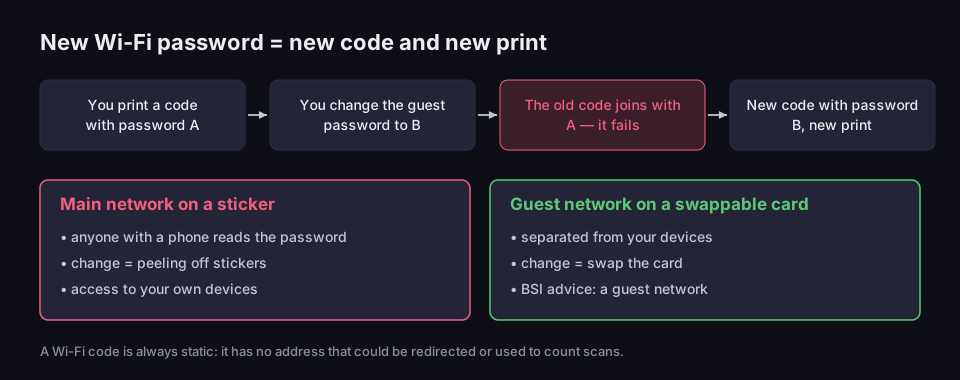
A new Wi-Fi password means a new code and a new print
why a printed code belongs on a guest network
Source: BSI, Wi-Fi security tips; ZXing, Barcode Contents; read 17 Oct 2026
Figure description
Four-step diagram: you print a code with password A, you change the guest network password to B, the old code joins with password A and fails, you make a new code with password B and a new print. Below, two panels. Main network on a sticker: anyone with a phone reads the password, a change means peeling off stickers, it gives access to your own devices. Guest network on a swappable card: separated from your devices, a change means swapping the card, BSI advice is a guest network. A Wi-Fi code is always static: it has no address that could be redirected or used to count scans.
In practice, think about how often you change the guest password and choose the medium to match. If it changes every few months, a swappable card in a stand or frame works better than a sticker glued to the counter. A long password is not a problem for the code: the BSI recommends a Wi-Fi password of at least 20 random characters, and as the next section shows, such a password barely makes the code any bigger.
Hiding the network name is not a security measure. Microsoft puts it plainly: a network that does not broadcast its name can still be detected, because devices that know it send its name in their probe requests — and it recommends against such networks (Microsoft, Non-broadcast Wireless Networks>)). That 2005–2007 document covers older versions of Windows, but the principle has not changed. For guests, a hidden network is just an extra field in the code and more trouble connecting.
How big to print a WiFi QR code
A Wi-Fi code is small because it carries little text. We measured seven variants for a network called "Kawiarnia-Goscie" with the same library the generator uses, from an open network to the longest WPA2 password. At level H, used by the generator without an account, the code has 33×33 to 53×53 modules and the minimum print size is 2 to 2.5 cm. Without a logo, at level M, the codes are sparser still: 29×29 to 41×41 modules.
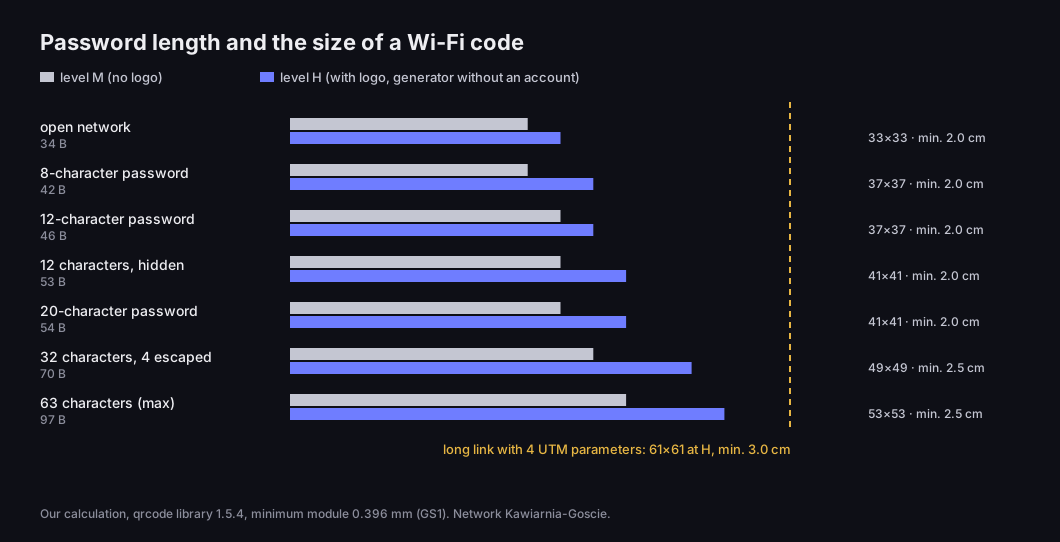
Password length and the size of a WiFi code
modules and minimum print size at levels M and H
Source: our calculation, qrcode library 1.5.4, 17 Oct 2026; minimum module 0.396 mm — GS1 General Specifications
Figure description
Bar chart for seven variants of the network Kawiarnia-Goscie, level M without a logo and level H with a logo. Open network (34 bytes): M 29×29, H 33×33, minimum 2.0 cm. 8-character password (42 B): M 29×29, H 37×37, minimum 2.0 cm. 12-character password (46 B): M 33×33, H 37×37, 2.0 cm. 12 characters, hidden network (53 B): M 33×33, H 41×41, 2.0 cm. 20-character password (54 B): M 33×33, H 41×41, 2.0 cm. 32 characters including 4 that need escaping (70 B): M 37×37, H 49×49, 2.5 cm. 63-character password, the WPA2 maximum (97 B): M 41×41, H 53×53, 2.5 cm. Reference line: a long link with four UTM parameters has 61×61 modules at H and a 3.0 cm minimum. Our calculation, qrcode library 1.5.4, minimum module 0.396 mm (GS1).
The key takeaway: even the longest WPA2 password gives a sparser code than a long link with UTM parameters, which has 61×61 modules at the same correction level. The advice in some guides that a Wi-Fi code needs to be "at least 5 cm" does not follow from what is in the code — we found no source for it. A 20-character password, as the BSI recommends, gives the same minimum print size as a 12-character one.
That the code fits in 2.5 cm does not mean it should be printed that small. The minimum only tells you at what size the code's module stays above the threshold a printer and a camera can still tell apart. The real size depends on distance: a code on a table card is scanned from arm's length, a code on a poster by the entrance from a few metres. The formula for a given distance, and the other reasons a code fails to scan, are in Minimum QR code size.
Where to put the code and what to write next to it
Always print the network name and password as text next to the code. A laptop or an e-reader usually cannot scan the code, and some guests have phones that will not join from a code. The text is their only way in — and it does not reduce security, because the password is in the code anyway.
One line of instruction is enough, such as "Scan with your phone camera to join the Wi-Fi". Good spots are the counter by the till, a table card, reception and the room in a holiday let — anywhere guests ask for the password. If a table has both a Wi-Fi code and a menu or review code, make two separate codes with clear labels. One code cannot both join a network and open a page, and guests need to know at a glance which one they are scanning. How to prepare a review code is covered in Google review link, and a menu code in QR code menu.
Other code types, what they contain and the difference between a static code and a code on a short link are covered in the guide How to make a QR code.
Frequently asked questions
Does a WiFi QR code expire?
No. The code works for as long as you do not change the password or the network name. After either change you need a new code and a new print.
Can I see how many people scanned a WiFi code?
No. A Wi-Fi code contains no address through which scans could be counted — the phone reads the network details straight from the code. Only codes that go through a short link to a page can count scans.
Does a WiFi QR code work on iPhone?
According to the ZXing project, iOS has supported Wi-Fi codes since version 11, and the iPhone itself can show a network code in the Passwords app. Apple's guide to scanning codes with the camera does not mention Wi-Fi codes, though, so always test the printout on an iPhone too.
What do I do after changing the Wi-Fi password?
Generate a new code with the new password and replace the print. The old code cannot be updated, because the password is stored inside it.
Is a WiFi QR code safe?
It is exactly as safe as a card with the password on it: anyone who scans it learns the password. That is why the printed code should be for a separate guest network, kept apart from your devices.
Will the code work on a company network where everyone signs in?
Not one from our generator. WPA2-Enterprise and WPA3-Enterprise networks need a separate sign-in for each person, and the generator only supports networks with one shared password or no password.
Make a code for your guest network
QR code generator, WiFi type — no account, PNG to print.