Link tracking from the first click: getting started with DVN Links
Set up link tracking in DVN Links with a short link and QR code, and learn what each click records, what the statistics show and what happens to a free-plan link after 30 days.
Link tracking in DVN Links starts with a short link. You sign up with Google or an e-mail link, click "New link" in the dashboard, paste an address and save. The short link and its QR code are ready at once, and every click on either is counted. The questions come later: what exactly is stored in a click, why bots show up in the statistics, what the dashboard cannot show and what happens to a link after 30 days on the free plan. The steps follow the dashboard — account, link, QR code, statistics, API — and each one says what the server does and what it does not.
Account: Google or an e-mail link
You sign up without a password, because DVN Links does not use one. On the registration page there are two routes: a Google button or a field for your e-mail address. There is no password login and no sign-in through GitHub.
With the e-mail route you receive a message containing a sign-in link. The link is valid for 15 minutes; after that, ask for a new one.
A new account starts on the Free plan with a 7-day trial. During the trial the server applies the limits of the Pro plan, which in practice means you can generate an API key and test an integration before you pay for anything. There is one trap: for the whole trial, the link form in the dashboard looks like the one on the Free plan. The custom slug field and the domain choice are disabled, and a note under the form reads "The link will expire after 30 days".
Once you are signed in, the dashboard has four tabs: Links, Business cards, Analytics and Settings.
How to create a short link in the dashboard
In the Links tab, a short link is one form with one required field:
- Click "New link". The "Create a new link" window opens.
- Paste the address into "Target URL". Give the full address including
https://. Onlyhttpandhttpsaddresses are accepted. - Decide about an alias in "Custom slug". On the Free plan the field is locked and carries a STARTER badge. On paid plans it is optional: leave it empty and the server generates a code. If your plan includes more than one domain, a domain selector appears in front of the field.
- Optionally open "QR customization". Logo and colours of the code; you can skip it.
- Check the expiry date. On Free the form only tells you that the link will expire after 30 days. On paid plans there is a date field; empty means the link never expires.
- Click "Create link".
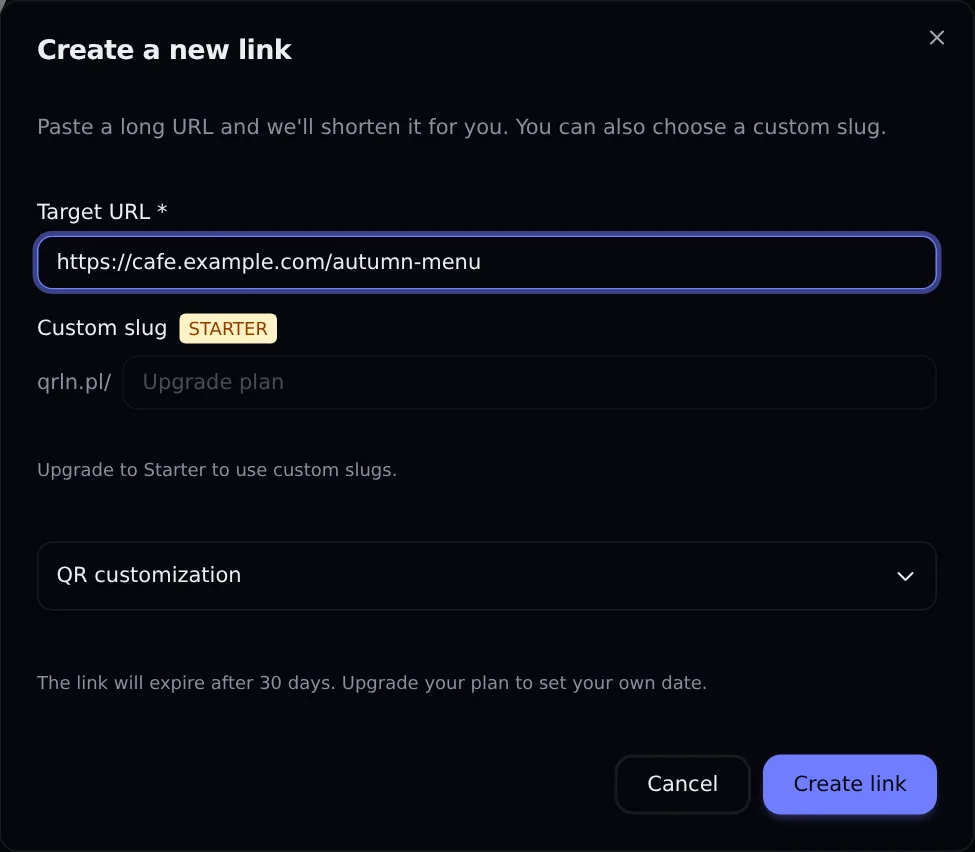
The "Create a new link" form on the Free plan
Screenshot: DVN Links dashboard, Free plan, 13 October 2026
Figure description
Screenshot of the Create a new link window in the DVN Links dashboard on the Free plan. The Target URL field contains https://cafe.example.com/autumn-menu. The Custom slug field has a STARTER badge, with the domain qrln.pl/ in front of it; the field is locked and reads Upgrade plan, with a note Upgrade to Starter to use custom slugs. A collapsed QR customization section. A note: The link will expire after 30 days. Upgrade your plan to set your own date. Buttons Cancel and Create link.
After you click, the server checks the target address with a content filter and with Google Safe Browsing; an address flagged as dangerous will not be shortened. Then it generates a code (if you gave no alias), builds the QR code and saves the link.
New links have a monthly limit: 50 on Free, 500 on Starter, 2,000 on Pro and 10,000 on Business; Enterprise has none. Clicks have a separate limit, described below.
The form has no UTM fields. On any plan you can add campaign parameters to the target address by hand, and from the Starter plan you can set them in separate fields in the link details. How to name them is covered in our article on UTM parameters, and why you would shorten addresses at all in the article how to shorten a link.
Alias or random code
Choose an alias when a person has to read, remember or retype the link; for anything people simply click, a random code is enough. You cannot change an alias after the link is created.
A random code consists of lowercase letters and digits, 7 characters on Free and Starter, 6 on Pro, 5 on Business and 4 on Enterprise. It is hard to dictate or copy from a poster.
A custom alias is a feature of the Starter plan and above. It gives you an address such as qrln.pl/autumnmenu instead of seven random characters. An alias has to meet a few rules:
- it is 3 to 30 characters long, and the minimum depends on the plan: 6 on Starter, 5 on Pro, 3 on Business and above;
- it uses only Latin letters and digits, with no accented letters, hyphens, underscores or spaces;
- it does not start with a zero and cannot consist of digits only;
- it is not one of the 36 words the service reserves, such as
admin,api,loginorblog; - it is unique within a domain, so the same alias can exist on
qrln.pland ondvnlinks.plas two different links; - case matters:
AutumnMenuandautumnmenuare two different addresses for the server.
You can change the target in the link details on every plan, Free included, but not the alias: a typo in it means a new link. Since people may retype an alias in lowercase, stick to lowercase letters.
A rule of thumb:
- Print, conversation, presentation, podcast: alias.
- Campaign in an e-mail, an ad or social media: random code. Nobody retypes it, and a separate link for each channel lets you compare channels in the statistics.
- QR code: it makes no difference, unless you also print an address to type next to the code.
QR code for a link
You do not make the QR code separately: it is created with every save of the link and always contains the address of the short link, not of the destination page. This is the most important property of a dashboard code. When you change the target of the link, the code on a flyer keeps working and leads to the new place, with no reprint.
The code is generated with an error correction level that depends on the logo. With a logo in the middle the server uses level H; without one, level M. According to DENSO WAVE, the company that developed the QR code, level M restores about 15% of codewords and level H about 30% (DENSO WAVE, Error correction feature). The logo takes a fifth of the code's width and covers data modules, hence the higher level.
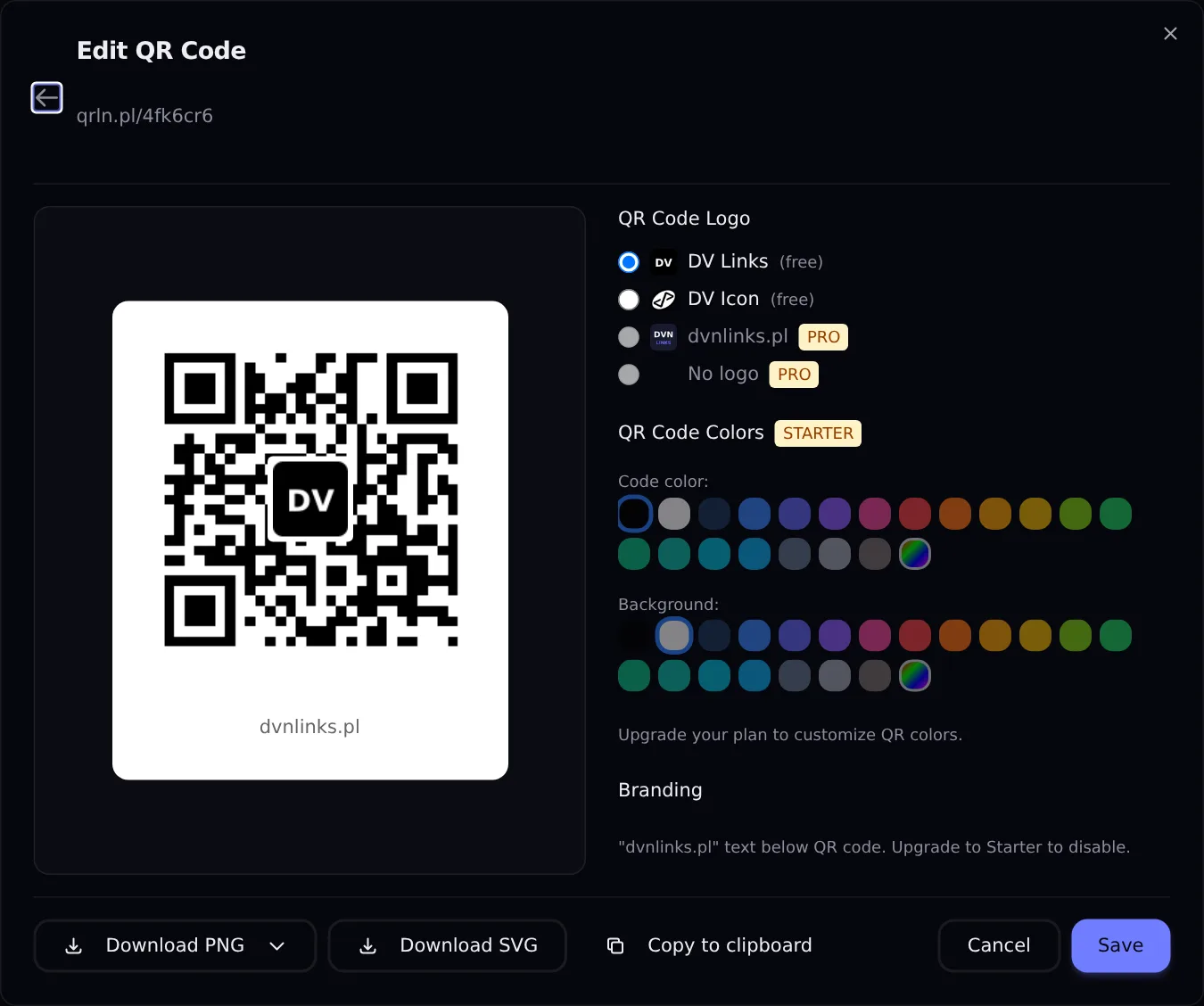
The "Edit QR Code" window on the Free plan
Screenshot: DVN Links dashboard, Free plan, 13 October 2026
Figure description
Screenshot of the Edit QR Code window for the link qrln.pl/4fk6cr6 in the DVN Links dashboard on the Free plan. On the left, a preview of a black QR code on a white background with a DV logo in the middle and the caption dvnlinks.pl under the code. On the right, the QR Code Logo section: DV Links (free, selected), DV Icon (free), dvnlinks.pl with a PRO badge and No logo with a PRO badge. The QR Code Colors section with a STARTER badge: greyed-out palettes for Code color and Background and a note Upgrade your plan to customize QR colors. The Branding section: the text dvnlinks.pl below the QR code, upgrade to Starter to disable. At the bottom, the buttons Download PNG with a list of sizes, Download SVG, Copy to clipboard, Cancel and Save.
You download the code from the "Edit QR Code" window. You can choose:
- PNG in three sizes: 250, 500 and 1000 px. For print, take 1000 px.
- SVG, a vector file that scales without loss of quality. It has a limitation that is easy to forget: the SVG contains neither the logo nor the caption under the code, only the code itself in the chosen colours.
- Copy to clipboard, which copies the code as an image you can paste.
There are no other formats. If the logo and caption must appear on the printout, take the 1000 px PNG; if you need a large format and can print the bare code, take the SVG.
On Free the code always carries one of two free DVN Links logos (DV Links or DV Icon) and the caption dvnlinks.pl, and the colours are locked. Your own colours come with Starter. On Starter and Pro the caption is optional; from Business it is off by default and you can add your own logo, a PNG or JPG file up to 500 KB.
A Free code starts leading to a page saying that the link has expired after 30 days; print that has to last needs a paid plan (what that means for a review sticker is shown in Google review link). Contrast, the quiet zone and the test before printing are covered in the article how to make a QR code. For a static code that depends on no link, such as one for a Wi-Fi network, use the QR generator, no account needed.
Link tracking: what happens when someone clicks
A click is two independent operations: the redirect the visitor receives and the record that goes into your statistics. The visitor does not wait for the record; the click is saved in the background.
Before it redirects, the server checks four conditions: whether a link with this code exists on this domain, whether it is active, whether it has expired and how many clicks the owner's account has used this month. If the link does not exist or is switched off, the visitor lands on the dvnlinks.pl home page, in its Polish version; if it has expired, on a page saying so. Past the click limit the link still leads to the destination, with the click hidden in statistics (on the free plan, from four times the limit, through an interstitial page).
The redirect uses code 302. The HTTP specification says of it that the client "ought to continue to use the target URI for future requests", which means the browser keeps asking for the original address instead of remembering the target (RFC 9110, §15.4.3). That is why a change of target works from the next click, and why every visit passes through the server and is counted. The differences between 301 and 302 and when to pick which are covered in the article how to shorten a link.
If a link has UTM fields set, the server appends them to the destination address at the moment of the redirect, overriding the same parameter if it is already there.
A click record contains:
- a hash of the IP address: salted SHA-256, not the address itself;
- the country: a two-letter code from a Cloudflare header;
- the device type: desktop, mobile, tablet or bot;
- the browser and operating system: read from the user agent header, which is also stored in full in the database;
- the referring page (referrer), if the browser sent one;
- `utm_source`, `utm_medium`, `utm_campaign`: from the short link's address or from the link fields;
- the date and time of the click.
The country comes from Cloudflare's CF-IPCountry header; its values XX (no data) and T1 (Tor) are stored as an unknown country (Cloudflare, HTTP headers).
We do not record the IP address itself, the city, any personal data or what the visitor did on the destination page.
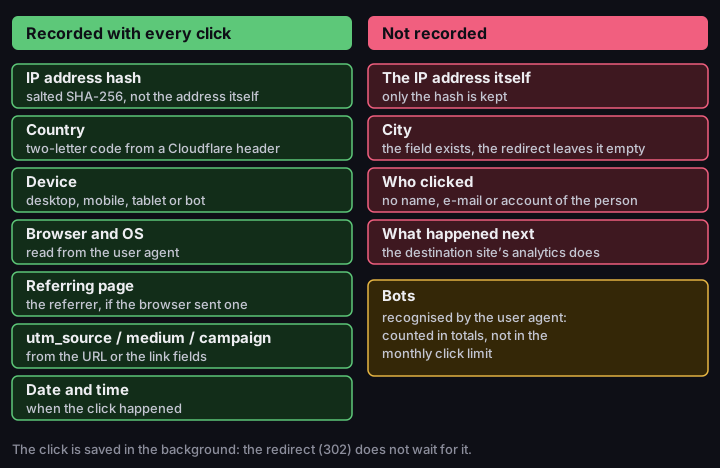
What DVN Links records with a click
what goes into a click record and what does not
Source: DVN Links redirect code, 13 October 2026
Figure description
A diagram in two columns. Recorded with every click: IP address hash (salted SHA-256, not the address itself); country (two-letter code from a Cloudflare header); device (desktop, mobile, tablet or bot); browser and OS (read from the user agent); referring page (the referrer, if the browser sent one); utm_source, medium, campaign (from the URL or the link fields); date and time. Not recorded: the IP address itself (only the hash is kept); city (the field exists, the redirect leaves it empty); who clicked (no name, e-mail or account of the person); what happened next (the destination site's analytics does that). A box about bots: recognised by the user agent, counted in totals but not in the monthly click limit. Footer: the click is saved in the background, the redirect (302) does not wait for it.
Click tracking statistics: what you see and what you do not
The Analytics tab shows the traffic of the whole account over a time window that depends on the plan.
At the top there are four tiles: total clicks, total links, clicks today and clicks in the last 7 days. Below them is a chart of clicks day by day, covering at most 90 days. Lower down are the breakdowns: devices, browsers, operating systems, countries, UTM campaigns and top referrers, and at the end a list of the 10 most popular links.
The statistics window depends on the plan: 7 days on Free, 30 on Starter, 90 on Pro and 365 on Business; Enterprise sees the whole history.
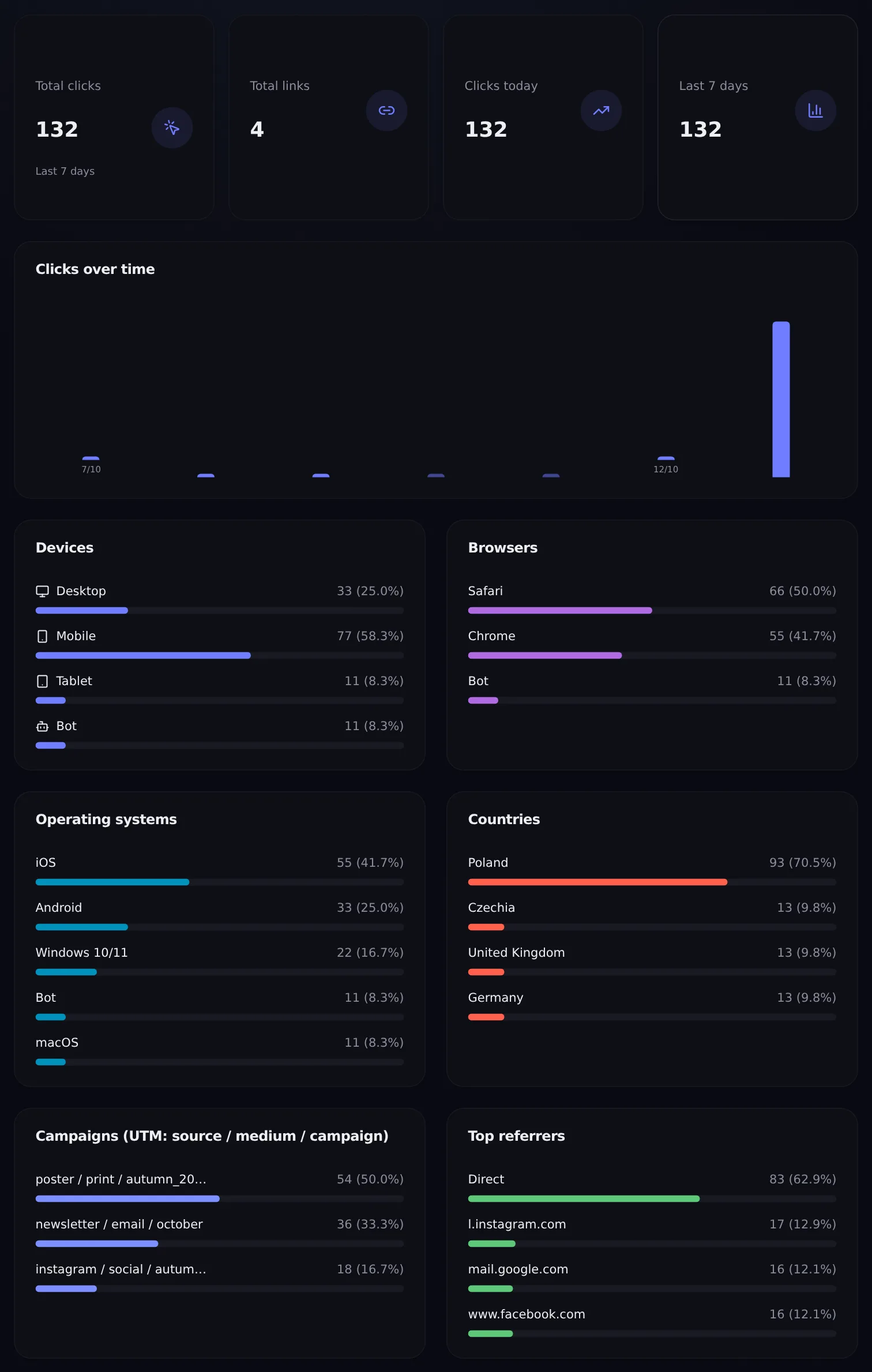
The Analytics view in the DVN Links dashboard
from the tiles to "Top referrers"; a test account, clicks generated by us for the screenshot
Screenshot: DVN Links dashboard, Free plan, 13 October 2026 — test account, sample clicks generated by us for the screenshot
Figure description
Part of the Analytics tab in the DVN Links dashboard, from the tiles to the Top referrers section, on a test account with clicks generated for the screenshot. Tiles: Total clicks 132 with the note Last 7 days, Total links 4, Clicks today 132, Last 7 days 132. A Clicks over time chart covering seven days with axis labels 7/10 and 12/10: one tall bar on the last day, no clicks on the other days. Devices: Desktop 33, Mobile 77, Tablet 11, Bot 11. Browsers: Safari 66, Chrome 55, Bot 11. Operating systems: iOS 55, Android 33, Windows 10/11 22, Bot 11, macOS 11. Countries: Poland 93, Czechia 13, United Kingdom 13, Germany 13. Campaigns (UTM: source / medium / campaign): poster / print / autumn_2026 54, newsletter / email / october 36, instagram / social / autumn_2026 18, the first and third campaign names truncated in the view. Top referrers: Direct 83, l.instagram.com 17, mail.google.com 16, www.facebook.com 16.
The screenshot comes from a test account with 132 clicks we generated ourselves; every twelfth carried a search robot's header and shows up as "Bot", included in the total. The numbers only show where to find what.
What the dashboard does not have:
- a view of a single link: the statistics cover the whole account, and individual links appear only in the list of the 10 most popular;
- a date filter: you see the whole window of your plan, with no way to narrow it to a chosen week;
- an export of the data to a file;
- unique visitors: the tiles show clicks, not people.
Unique visitors are available through the API instead. The request GET /api/v1/links/{id}/stats returns the unique_visitors field, the number of distinct IP hashes, for one link and a period of 1 to 90 days (30 by default). It is an approximation: the same person at home and at work gives two hashes, and several people behind one company IP address give one.
What depends on the plan and what happens to a Free link
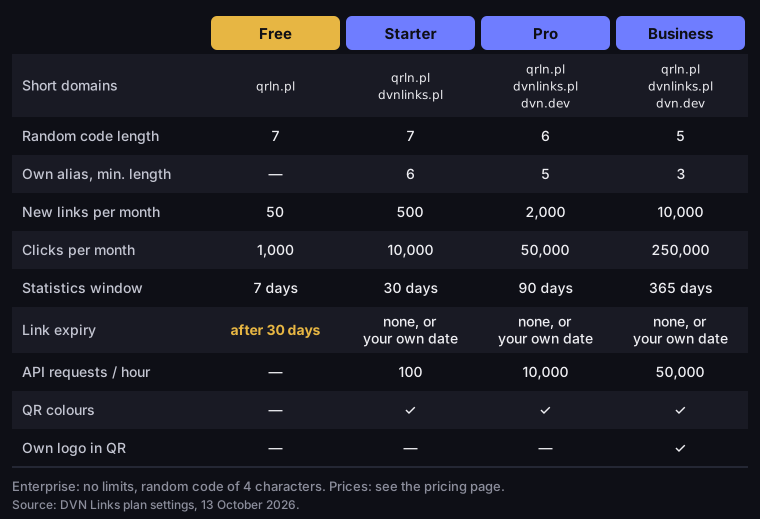
The plan does not change how a link works. It changes the domain, how long the link lives and how much of its history you see.
What depends on the plan in DVN Links
Free, Starter, Pro and Business
Source: DVN Links plan settings, 13 October 2026
Figure description
A table of the Free, Starter, Pro and Business plans. Short domains: Free qrln.pl; Starter qrln.pl and dvnlinks.pl; Pro and Business qrln.pl, dvnlinks.pl and dvn.dev. Random code length: 7, 7, 6, 5. Own alias, minimum length: Free none, Starter 6, Pro 5, Business 3. New links per month: 50, 500, 2,000, 10,000. Clicks per month: 1,000, 10,000, 50,000, 250,000. Statistics window: 7, 30, 90 and 365 days. Link expiry: Free after 30 days; Starter, Pro and Business none or your own date. API requests per hour: Free none, Starter 100, Pro 10,000, Business 50,000. QR colours: from Starter. Own logo in QR: Business only. Enterprise: no limits, random code of 4 characters. Prices: see the pricing page.
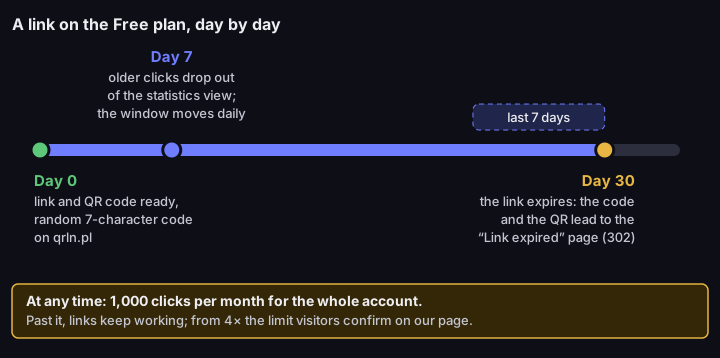
On the Free plan a link follows a fixed schedule. On day zero you get a link with a random 7-character code on qrln.pl and a QR code for it. From day seven the oldest clicks begin to drop out of the statistics view, because the Free window covers only the last 7 days and moves forward every day. On day thirty the link expires: the short address and the QR code lead from then on, by a 302 redirect, to a dvnlinks.pl page saying that the link has expired. You cannot change or switch off the expiry date on Free.
A link on the Free plan, day by day
day 0, day 7 and day 30
Source: DVN Links plan settings and redirect code, 13 October 2026
Figure description
A timeline of a link on the Free plan. Day 0: link and QR code ready, random 7-character code on qrln.pl. Day 7: older clicks drop out of the statistics view, the window of the last 7 days moves daily. Day 30: the link expires, the code and the QR lead to a dvnlinks.pl page saying that the link has expired (302). A band under the timeline: at any time 1,000 clicks per month for the whole account; past it, links keep working, and from four times the limit they go through an interstitial page.
The account's click limit applies regardless of a link's age: 1,000 a month on Free, 10,000 on Starter, 50,000 on Pro and 250,000 on Business. The limit covers all links together, not each one separately. Past it, links keep working, and clicks over the limit are recorded but hidden in statistics until you move to a higher plan. On the free plan, from four times the limit, visitors confirm on our interstitial page. We send an e-mail at 80% and past the limit, and the dashboard shows a counter. Bots do not use up the limit.
Move to a paid plan when a link has to live longer than 30 days or leave the screen: a poster, packaging, trade-fair materials. Which plan fits which traffic you can check on the pricing page, and the full list of capabilities is on the features page.
How to read click analytics: three questions
The account statistics answer three questions (which channel, when and from where) and none about what the visitor did after the click.
Which channel brought the clicks? Give every channel its own link or its own campaign in the link's UTM fields and read the "Campaigns" breakdown. Source, medium and campaign name form one row there, so newsletter / email / autumn_2026 and instagram / social / autumn_2026 sit side by side.
When did people click? The daily chart shows at most 90 bars, whatever the plan's window. A spike on one day is usually a newsletter send or a post; steady traffic over many days usually means a QR code on something that stays put.
Where did they come from? "Referrers" list the domain of the referring page. "Direct" means no such information: QR code scans, mail apps and messengers, hand-typed addresses.
There is one limit: a shortener sees the click, not the purchase or the sign-up. What happened next is shown by the analytics of the destination site; the split of roles is covered in UTM parameters: what they are.
Bots and mail scanners
We recognise bots by the user agent header: by words such as bot or crawler and by the names of link previews, including Facebook, WhatsApp and Telegram. Pasting a link into a chat can therefore add a "Bot" click before anyone taps it. Bots are not filtered out of statistics: they count towards the click total and the unique_visitors field in the API, but not towards the account's monthly limit. Mail security scanners that present themselves as an ordinary browser are not recognised at all and are recorded like people. Mailchimp describes such scanners clicking links in e-mails, often before any human sees the message (Mailchimp). When you judge a newsletter, subtract the "Bot" line and be wary of a burst of clicks in the first minutes after the send.
QR code tracking: a scan is a click
DVN Links does not tell a QR code scan from a click: the code holds the short link, and the server records every visit the same way, with no "from where" field. A scan from a phone camera usually lands in "Direct", because the camera app sends no referring page.
To separate print from everything else, give each medium its own link (one for the flyer, another for the poster) or set the link's UTM fields. The row in "Campaigns" and the count next to the link then show which medium works.
One trap: UTM parameters typed by hand onto the short address, such as qrln.pl/abc?utm_source=flyer, are recorded in DVN Links statistics but do not reach the destination address; only the UTM fields saved on the link are passed on. Your site's analytics will not see that split. Also remember that a free link expires after 30 days, and a printed code then stops counting scans.
API: creating a link from code
The API does what the form does, from your own system: a shop, a CRM or a script that generates newsletter links. It starts with a key.
The API is available from the Starter plan, and also during the 7-day trial of a new account. You create a key in the Settings tab, in the API Keys section. The server shows it only once, so copy it straight into a password manager; later the dashboard shows only its beginning. A key has the format dvn_live_ followed by 32 characters.
You send the key in the Authorization: Bearer header. You create a link with the request POST /api/v1/links. The only required field is original_url; optionally you can pass an alias (slug), a domain (domain), an expiry date (expires_at), tags (tags) and a utm object with the fields source, medium, campaign, term and content. The alias and the domain have to fit within your plan.
1curl -X POST https://dvnlinks.pl/api/v1/links \2 -H "Authorization: Bearer dvn_live_…" \3 -H "Content-Type: application/json" \4 -d '{5 "original_url": "https://example.com/autumn-offer",6 "utm": {7 "source": "newsletter",8 "medium": "email",9 "campaign": "autumn_2026"10 }11 }'The server answers with code 201 and the new link in the data object: short_url is the ready short address, and qr_code the address of the link's QR code.
The number of requests per hour depends on the plan: 100 on Starter, 10,000 on Pro and 50,000 on Business. The API also reads statistics and edits and deletes links; the full reference is in the documentation, which you can open once signed in.
Frequently asked questions
How do I set up link tracking for free?
Create a Free account, click "New link" in the Links tab, paste the address and click "Create link". Every click is counted in the Analytics tab. The link expires after 30 days, and the account is limited to 50 new links and 1,000 clicks a month.
Can I change the target address after creating a link?
Yes, on every plan, Free included, in the link details. The short address and the QR code stay the same. Only the alias cannot be changed.
What happens to a link after 30 days on the Free plan?
It expires. The short address and the QR code start redirecting to a dvnlinks.pl page saying that the link has expired. You cannot change this date on Free; on paid plans a link either never expires or expires on a day you set yourself.
Create your first short link
You sign up with Google or an e-mail link, with no password. The link and the QR code are ready at once, and you will see the first clicks in the Analytics tab.