gclid: what it is, why it is in your URL and how not to lose it
The gclid is the Google Ads click identifier that auto-tagging appends to your landing page URL. What it does in Google Ads and GA4, what wins when UTMs are present too, and where it gets lost.
The gclid is the Google Ads click identifier — a string that appears in your page URL after gclid= when someone clicks your ad. Google puts it plainly: „Google Click ID (GCLID) is a URL parameter passed with ad clicks” (Google Ads Help). You do not add it by hand; an account setting called auto-tagging does. This article explains what the gclid does in Google Ads and Google Analytics 4, what happens when the same URL also carries UTM parameters, and — most usefully in practice — the four places where a gclid gets lost before it reaches a conversion.
What is a gclid and where does it come from
gclid stands for Google Click Identifier. Usually every ad click gets its own value. Google describes the exception: a gclid is sometimes created when the ad is shown, and if the same user then clicks that ad again, „the same GCLID will be used” (Google Ads Help, auto-tagging). According to Google, the parameter „identifies the campaign along with other attributes of the click” (Google Ads Help). To a person the string means nothing; Google Ads uses it as a key to the click's details.
Auto-tagging is what appends it. Google describes it like this: „After someone clicks your ad, auto-tagging adds a bit of additional information a parameter called GCLID” (Google Ads Help, auto-tagging). New accounts have it switched on from the start — „Auto-tagging is turned on by default for new accounts” (same page). If your account is older, or someone switched it off, you will find the setting in Google Ads under Admin → Account settings → Auto-tagging, as the box „Tag the URL that people click through from my ad”.
In practice: an ad points to https://shop.com/shoes, and after the click the browser opens https://shop.com/shoes?gclid=Cj0K… with a long string at the end. If the URL already had parameters, the gclid joins them after an &.
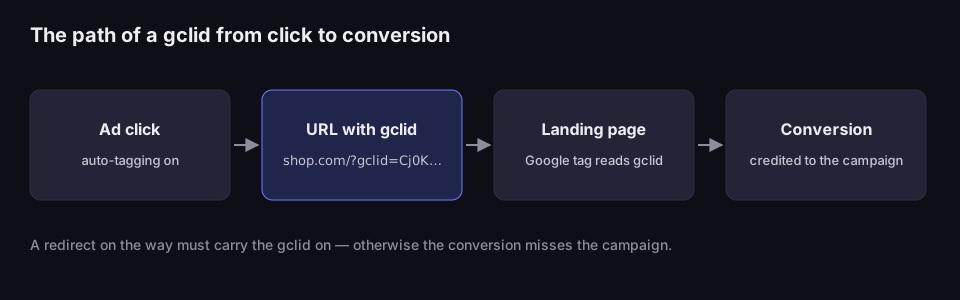
The path of a gclid from click to conversion
the identifier travels through the page URL to the tag that records the conversion
Source: Google Ads Help 9744275 and 3095550; read 17 Oct 2026
Figure description
Four-step diagram. Ad click with auto-tagging on. URL with gclid, for example shop.com/?gclid=Cj0K. Landing page where the Google tag reads the gclid. Conversion credited to the campaign. Below: a redirect on the way must carry the gclid on — otherwise the conversion misses the campaign.
What the gclid does in Google Ads and GA4
Its main job is measuring conversions on your website. Google says the parameter is required for that — without it, Google Ads cannot connect a purchase or a submitted form to a click on a specific ad (Google Ads Help). The mechanism is simple: the Google tag on the landing page reads the gclid from the URL and keeps it, and when a conversion happens on that page or a later one, it sends the conversion back together with the click identifier.
Its second job is joining data with Google Analytics. „You can use the GCLID parameter to link data between Google Ads and Google Analytics” (same page). Once the accounts are linked, GA4 recognises ad traffic and shows it with campaign, ad group and keyword rather than a plain „google”. When you link GA4 and Google Ads, you even get the option to turn auto-tagging on: Google's wording is „Expand the Enable Auto-Tagging option to enable auto-tagging or leave your auto-tagging settings as they are” (GA4 Help).
Its third job concerns conversions that happen off the website — a phone call, a contract signed a week later, a sale in a shop. Then you have to store the gclid with the lead yourself and send it to Google Ads later. Google tells you to „capture the GCLID parameter that's appended to the URL that people click through from one of your ads” and keep it with the customer's details (Google Ads Help, offline conversion import). Two things are easy to miss. First: „The GCLID is case sensitive, so make sure you're uploading it correctly” — a spreadsheet or CRM that changes capitalisation breaks the match. Second: for new setups, Google now points elsewhere — „we recommend starting with enhanced conversions for leads instead” (same page).
gclid vs UTM: which one wins in GA4
You can add UTM parameters to Google Ads too — by hand in the URL or through the „Final URL suffix” field, which attaches parameters „to the end of your landing page URL” (Google Ads Help). So what does GA4 show when one URL carries both a gclid and utm_source, utm_medium, utm_campaign?
The GA4 Help answer: with auto-tagging, „the source, medium, and other traffic-classification dimensions use the auto-tagged values” (GA4 Help). Source, medium, campaign and default channel come from auto-tagging, and your UTMs are ignored for them. You cannot reverse that order: Google Ads Help says that in GA4 „auto-tagging is prioritized over manual tagging due to the absence of an override option” (Google Ads Help, auto-tagging). The „Allow manual tagging (UTM values) to override auto-tagging (GCLID values)” checkbox that older guides describe belonged to Universal Analytics — GA4 does not have it. The exception: „The manually tagged values for utm_content and utm_term are used for the Manual Ad Content and Manual Term dimensions” (same page).
Why bother with UTMs, then? First, when auto-tagging is off or no gclid reaches the URL, GA4 takes source and campaign from the UTMs. Second, a gclid in the URL cannot always be used. Google describes cases where GA4 then falls back on UTMs: „in instances where the GCLID or DCLID cannot be used as intended, or data is otherwise not available”, for example „when ad_user_data is denied through your Consent Mode implementation” (GA4 Help). That fallback comes with a condition most guides skip: the same help page says it covers enhancements for properties that „have been contacted by their Google representative and have opted into the allowlist”. If your GA4 property is not in that programme, a refused consent is more likely to give you „(not set)” in the traffic source dimensions — Google says so on the same page. UTMs are still worth adding: they cost little, and if Google widens the mechanism, the visit stays out of the wrong channel.
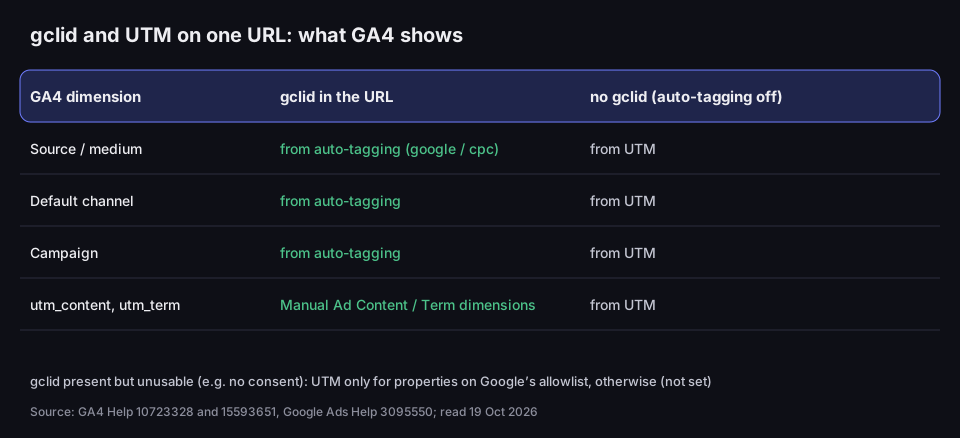
gclid and UTM on one URL
what GA4 shows when the gclid is in the URL, and when it is not
Source: GA4 Help 10723328 and 15593651, Google Ads Help 3095550; read 19 Oct 2026
Figure description
Table. Source and medium: with a gclid in the URL, from auto-tagging, i.e. google / cpc; with no gclid, auto-tagging off, from UTM. Default channel: with a gclid from auto-tagging, without one from UTM. Campaign: with a gclid from auto-tagging, without one from UTM. utm_content and utm_term: with a gclid in the Manual Ad Content and Manual Term dimensions, without one from UTM. Note: when a gclid is present but GA4 cannot use it, for example without consent, UTMs are used only by properties on Google's allowlist; elsewhere the dimensions show (not set).
What this means in practice:
- Do not switch auto-tagging off just because you use UTMs. You would lose conversion measurement and keyword data.
- Treat UTMs on Google ads as the backup. Consistent values help when the gclid is missing; how to name them and how GA4 assigns channels is in UTM parameters — what they are.
- Mind the capitals in UTMs. „Parameter values are case sensitive, e.g.
utm_source=googleis different fromutm_source=Google” (GA4 Help). You can build consistent values in the UTM builder.
Example: one URL, two sets of parameters
A Google Ads ad points to https://shop.com/shoes?utm_source=google&utm_medium=cpc&utm_campaign=autumn&utm_content=banner-a. After the click, auto-tagging appends &gclid=Cj0K…. In GA4 the session gets source, medium and campaign from Google Ads data — the campaign name from the ad account, even if you typed something else in utm_campaign. utm_content=banner-a is not lost: you will find it in the Manual Ad Content dimension. If the same user refuses consent for advertising data, GA4 may be unable to use the gclid — a property on Google's allowlist then takes the UTM values, others show „(not set)”. That is why it pays to keep UTM names in line with your Google Ads campaign names — both versions of the report then say the same thing.
Where a gclid gets lost
A gclid only works if it reaches the page that carries the tag and — for offline conversions — your database. There are four common places where it disappears on the way; the fourth, a short link in the ad, gets its own section below. On top of that, some traffic never has a gclid at all.
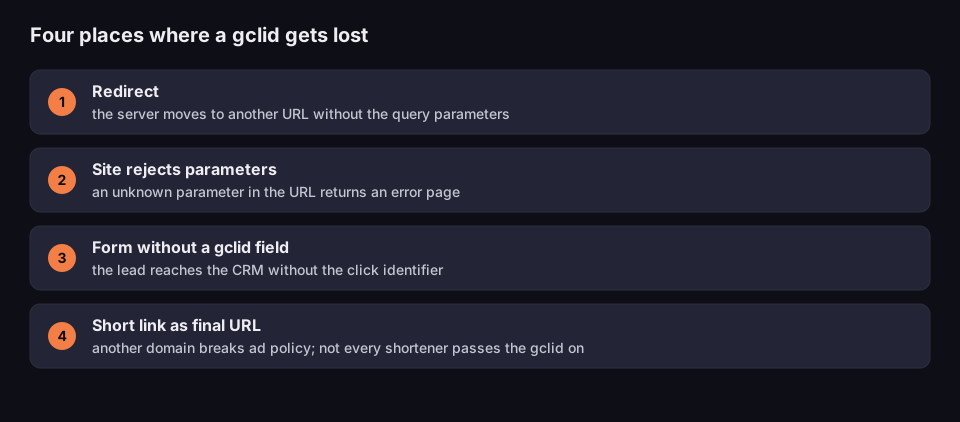
Four places where a gclid gets lost
each one cuts the conversion off from the campaign
Source: Google Ads Help 3095550 and 7012522, Google Ads policy 6368661; read 17 Oct 2026
Figure description
List of four places. 1. Redirect: the server moves to another URL without the query parameters. 2. Site rejects parameters: an unknown parameter in the URL returns an error page. 3. Form without a gclid field: the lead reaches the CRM without the click identifier. 4. Short link as final URL: a redirect to another domain breaks ad policy, and not every shortener passes the gclid on.
1. Redirects. When a site redirects from the ad URL to another one — from the bare domain to www, from an old path to a new one, from HTTP to HTTPS — the server has to carry the query parameters across; the browser itself carries over only the fragment after # (measured in our article on the query string). Google's reminder: „If your website uses redirects, it's also important to make sure the GCLID is passed to the final landing page in order to track conversions” (Google Ads Help).
2. Sites that reject unknown parameters. Rarer, but it happens: „A small percentage of websites don't allow arbitrary URL parameters and serve an error page when auto-tagging is turned on” (same page). The symptom is obvious — the ad leads to an error page. The fix is on the server: allow extra parameters, do not switch auto-tagging off.
3. Forms without a gclid field. This only matters for offline conversions, but it is common. The gclid is in the URL of the page someone landed on, while the form sends name, phone and email — without the click identifier. Google offers a script that reads the gclid from the URL, keeps it and writes it into a hidden form field, and recommends running it on every page, not just the landing page (Google Ads Help). Without it, a sale closed by phone a week later never makes it back to the campaign.
A separate case: iOS traffic. Here the gclid is not lost through any fault of yours — some traffic simply does not have it. Since App Tracking Transparency, Google says: „we no longer send the Google Click Identifier (GCLID) for iOS 14 traffic coming from ads on a handful of Google apps” (Google Ads Help). Other parameters appear instead — more on them below.
How to check the gclid step by step
Before you decide a campaign „does not convert”, check that the gclid actually reaches where it should.
- Auto-tagging. In Google Ads open Admin → Account settings → Auto-tagging and make sure the box is ticked.
- The URL after the click. Click the ad or its preview. The address bar should end with
gclid=. If the site redirected you further, check the URL of the page where you stopped — that is where the parameter has to be. - A test without the ad. Paste the ad's landing page URL into the browser with
?gclid=testadded (or&gclid=testif the URL already has parameters). If the parameter disappears or the site shows an error, the problem is a redirect or the server configuration, not Google Ads. - The form. Go from the ad to submitting the form and check in your CRM whether the gclid was saved with the lead. If the field is empty and you report conversions offline, the script from Google's help is not running on one of the pages.
- GA4. Click the ad in a private browser window (so GA4 sees you as a new user), open the Realtime report and check that your visit has source
googleand mediumcpc. If you see(direct)or a referring site, the gclid did not reach the tag.
The gclid in GA4 reports
Traffic recognised by its gclid has source google and medium cpc in GA4, and once the accounts are linked, campaign, ad group and keyword names as well. Interestingly, the gclid keeps working even after you unlink the accounts: according to GA4 Help, if auto-tagging is on and appends a gclid to the URL, traffic after unlinking still appears as google / cpc, or with UTM values if there are any (GA4 Help). You do lose a lot, though: new campaign and ad group data shows as „(not set)”, and those clicks are not used for Google paid channel attribution (same page).
The reverse is the dangerous case: auto-tagging off and no UTMs on the ads. Visits from paid clicks can then land in organic Google traffic or in Direct, and the campaign cost has no result in your reports. If GA4 shows a sudden drop in google / cpc while Google Ads spend is unchanged, start by checking auto-tagging and redirects.
Offline conversions: the gclid in your CRM
Businesses that sell over the phone or after a meeting need the gclid in their own database, not just in the page URL. The scheme from Google Ads Help goes like this (Google Ads Help):
- Capture. A script on every page reads the gclid from the URL and keeps it, so it is not lost when someone moves to another page before submitting the form.
- Store with the lead. A hidden form field passes the gclid to the CRM together with the contact details — Google says you can „store each GCLID with the corresponding prospect's information”.
- Import. When a lead becomes a customer, you send the gclid and the conversion to Google Ads. Timing matters: Google assumes a click-to-conversion cycle of less than 14 or 90 days, depending on the data source.
The same mechanism breaks in the same places as the gclid on the page: a redirect before the form, a form embedded from another domain, a CRM that changes capitalisation. For new setups, Google points to enhanced conversions for leads, which also match sales on hashed contact data, with the gclid as one of several signals.
Short links in Google ads: why not
The fourth point in the figure is about link shorteners, so it gets its own section — including ours. A short link is a redirect: qrln.pl/abc sends people to the real URL. In a Google Ads ad that causes two problems at once.
The first is ad policy. Google lists as not allowed „Redirects from the final URL that take the user to a different domain” (Google Ads policy). A short link on a different domain from the landing page, used as the final URL, is a quick route to a disapproved ad.
The second is the gclid itself. Auto-tagging appends it to the URL the user clicks — the short link. What happens next depends on the shortener — not every one carries query parameters across, so check with a ?gclid=test before relying on it. Ours, DVN Links, passes them on by default: qrln.pl/abc?gclid=… is counted as a click in the statistics, and the landing page receives a URL with the same gclid. The same goes for fbclid, utm_source and any other query parameter. They join the parameters the destination URL already has and the UTMs saved on the link; when the same parameter is in both places, the value from the click wins. You can turn forwarding off for a single link or as the default for your whole account. It does not solve the first problem, ad policy, though.
The takeaway: in Google ads, put the real page URL in the final URL. Short links make sense where there is no auto-tagging: in a text message, a PDF, a QR code on a flyer, a messenger chat. There, UTMs saved on the link are the only way for GA4 to know the source; how to set that up step by step is in how to shorten a link.
An example of who does what: an autumn campaign in Google Ads points to shop.com/autumn and is measured by the gclid. The same promotion on a printed flyer in the shop has a QR code with a short link whose settings hold utm_source=flyer, utm_medium=print, utm_campaign=autumn. In GA4 both routes end up in the same campaign, „autumn”, but in different channels: the ad in Paid Search, and the flyer — with a print medium that GA4's rules do not know — in Unassigned until you build a custom channel group for print. The short link's dashboard also shows the number of scans before GA4 counts any visits.
Other click identifiers: wbraid, gbraid, fbclid
The gclid is not the only identifier you will see in URLs from ads.
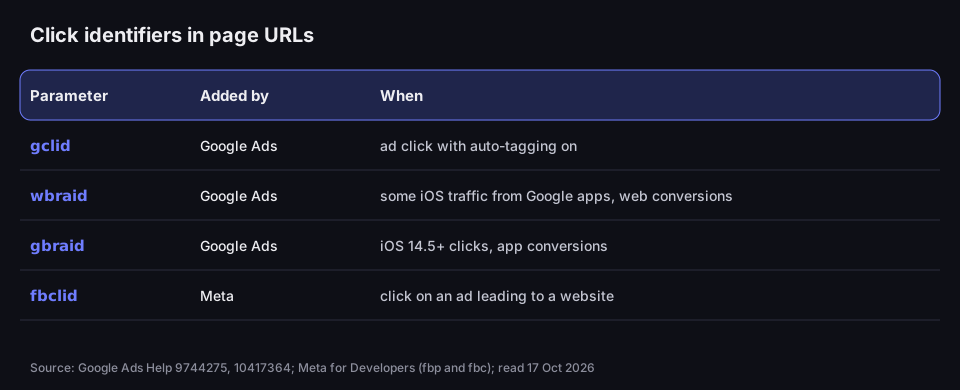
Click identifiers in page URLs
each ad platform appends its own
Source: Google Ads Help 9744275 and 10417364, Meta for Developers (fbp and fbc parameters); read 17 Oct 2026
Figure description
Table of four parameters. gclid, added by Google Ads on an ad click with auto-tagging on. wbraid, Google Ads, some iOS traffic from Google apps, web conversions. gbraid, Google Ads, iOS 14.5 and later clicks, app conversions. fbclid, Meta, click on an ad leading to a website.
- wbraid — Google introduced it in March 2021 for web conversions from iOS traffic for which it no longer sends a gclid; the parameter „will help you attribute conversions back to your ad campaigns” together with conversion modelling (Google Ads Help).
- gbraid — since May 2021, for app conversions: „
gbraidis the new parameter that can help you measure app conversions driven by ad campaigns on iOS” (same page). - fbclid — Meta's counterpart. The Conversions API documentation describes it as „a Meta-generated parameter that is passed with the URL of an advertiser's website when a user clicks an ad”, and the value sent to Meta takes the form
fb.<subdomainIndex>.<time>.<fbclid>(Meta for Developers).
They all work like the gclid: they have to reach the page that carries the platform's tag. The same four places that lose a gclid lose them too.
Should you strip the gclid from your URLs
From ad traffic — no. Without the gclid, Google Ads cannot credit conversions and GA4 shows ad clicks in less detail. Switching auto-tagging off „to make URLs tidier” costs more than it gives.
What does make sense: give the landing page a proper canonical URL without parameters, and do not let internal links and shared URLs carry the gclid. Someone who copies the address bar after clicking an ad and sends it to a friend sends the gclid too — the next visit with the same identifier is not a new ad click.
Frequently asked questions about the gclid
The string contains no name or email address, but it identifies a specific click, so do not assume it is not personal data. It is used to measure advertising, so whether you may use it depends on consent for advertising data: if the visitor refuses, GA4 may not use the gclid (properties on Google's allowlist then fall back on UTMs). How to describe this in your privacy policy is a question for your lawyer.
Click your ad or its preview and check the address bar. If it ends with gclid=, auto-tagging works. If the parameter disappears after the page loads, one of the redirects is losing it.
There is no point: Google assigns the gclid when an ad is clicked, and only such an identifier is recognised by Google Ads. In channels without ads, use UTMs — for example built in the UTM builder.
Because with auto-tagging working, source, medium and campaign come from the gclid. Your utm_content and utm_term are in the Manual Ad Content and Manual Term dimensions.
Yes, by default. Parameters appended to the short URL, including gclid and fbclid, reach the landing page; when the same parameter is saved on the link, the value from the click wins. You can turn this off in the link's settings. Even so, the final URL in Google ads should be the real page URL: a redirect to another domain breaks ad policy.